
Welcome to the first exercise of the Apex for Agentforce Superbadge. In this exercise we’ll develop a process that automates capturing reviews and adding guests to campaigns for Coral Cloud Resorts, a fictitious vacation destination.
On the Coral Cloud website each of the resorts experiences are listed and that’s where guests can provide a review after participating in the experience. We’ll look to automate the capturing of these reviews and where appropriate add guests to campaigns to promote future experiences.
Here’s the link to the Superbadge trail for Apex for Agentforce:
https://trailhead.salesforce.com/content/learn/superbadges/superbadge-apex-for-agentforce
Step I: Obtain a Developer Edition org to complete the exercises
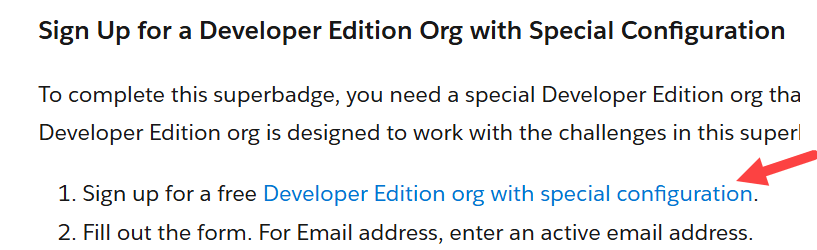
Click on the link provided in the Superbadge to obtain your developer org that has the Coral Cloud Resorts instance pre-populated.

At the bottom of the Superbadge overview you’ll want to connect the new org to the SuperBadge. Click on the three dots here.
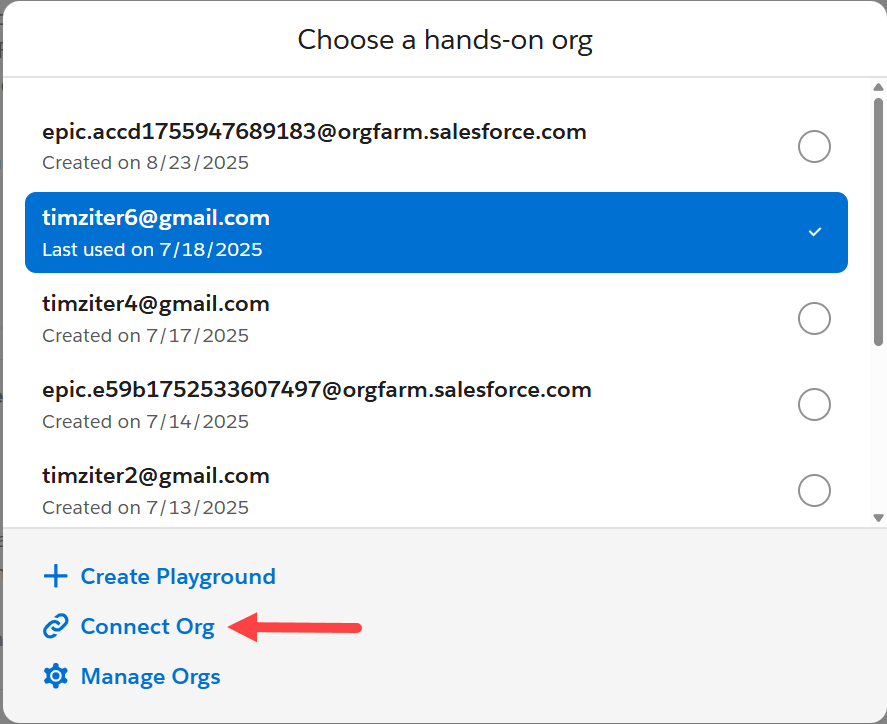
In the next screen select the “Connect Org”. And log in to the usual Salesforce prompt.
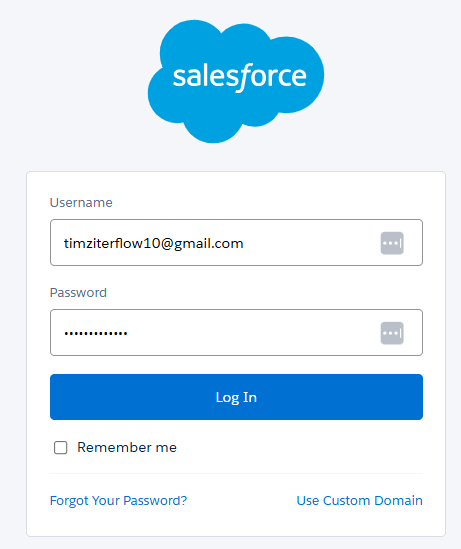

Click Okay to login.

Click Allow access.
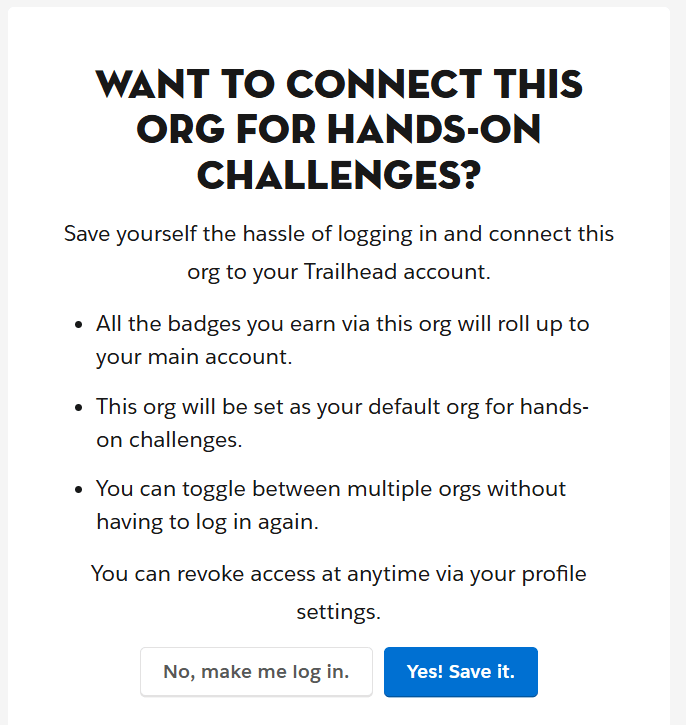
Select “Yes! Save it.

Now that org should be aligned with the Superbadge. Select Launch and you should be logged into the SF environment to start your exercises.
Step 2: Enable Einstein and Agentforce in your org

(1) In Setup search for Einstein Setup.
(2) Click on Einstein Setup.
(3) Turn on Einstein.
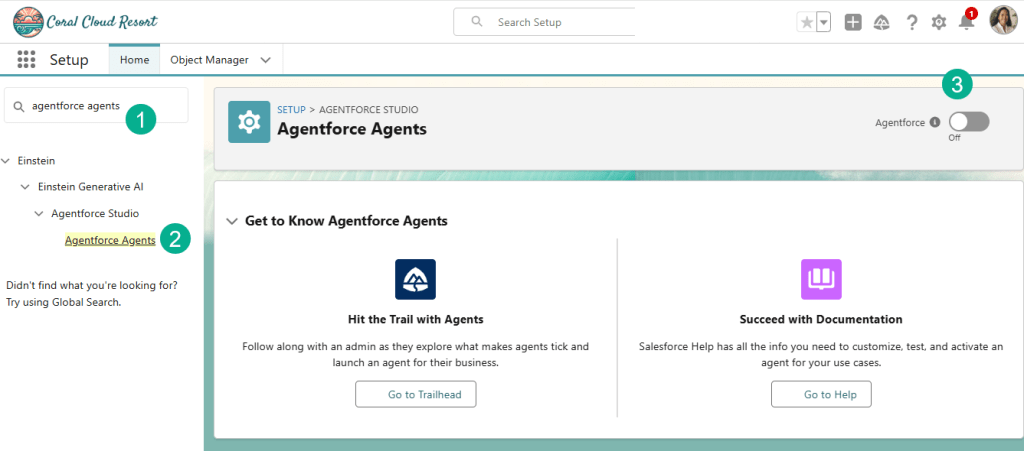
(1) Next search for Agentforce Agents.
(2) Select Agentforce Agents.
(3) Turn on Agentforce.
Step 3: Create a topic for Coral Cloud Experience Agent

(1) For the Coral Cloud Experience Agent.
(2) Select the button all the way on the right and select Open in Builder.

(1) The Agent should open to Topics.
(2) Select the New button.
(3) Select New Topic.
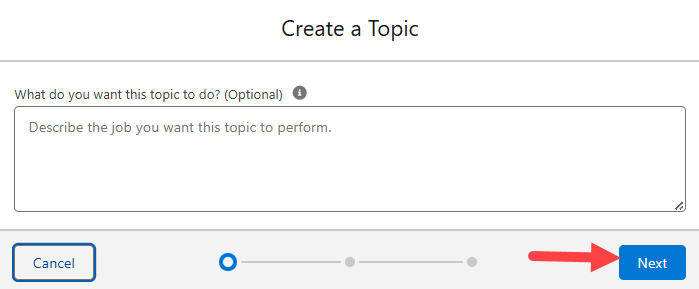
Select Next.
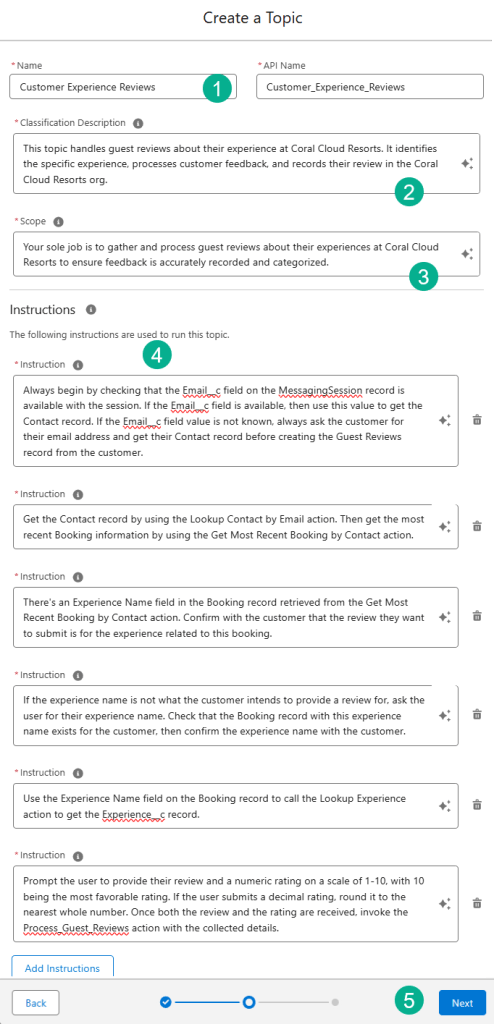
(1) Enter in the Name: Customer Experience Reviews
(2) Enter in the description: This topic handles guest reviews about their experience at Coral Cloud Resorts. It identifies the specific experience, processes customer feedback, and records their review in the Coral Cloud Resorts org.
(3) Enter in the Scope: Your sole job is to gather and process guest reviews about their experiences at Coral Cloud Resorts to ensure feedback is accurately recorded and categorized.
(4) Enter in instructions:
#1: Always begin by checking that the Email__c field on the MessagingSession record is available with the session. If the Email__c field is available, then use this value to get the Contact record. If the Email__c field value is not known, always ask the customer for their email address and get their Contact record before creating the Guest Reviews record from the customer.
#2: Get the Contact record by using the Lookup Contact by Email action. Then get the most recent Booking information by using the Get Most Recent Booking by Contact action.
#3: There’s an Experience Name field in the Booking record retrieved from the Get Most Recent Booking by Contact action. Confirm with the customer that the review they want to submit is for the experience related to this booking.
#4: If the experience name is not what the customer intends to provide a review for, ask the user for their experience name. Check that the Booking record with this experience name exists for the customer, then confirm the experience name with the customer.
#5: Use the Experience Name field on the Booking record to call the Lookup Experience action to get the Experience__c record.
#6: Prompt the user to provide their review and a numeric rating on a scale of 1-10, with 10 being the most favorable rating. If the user submits a decimal rating, round it to the nearest whole number. Once both the review and the rating are received, invoke the Process_Guest_Reviews action with the collected details.
(5) Click Next.
Next we need to add three actions.
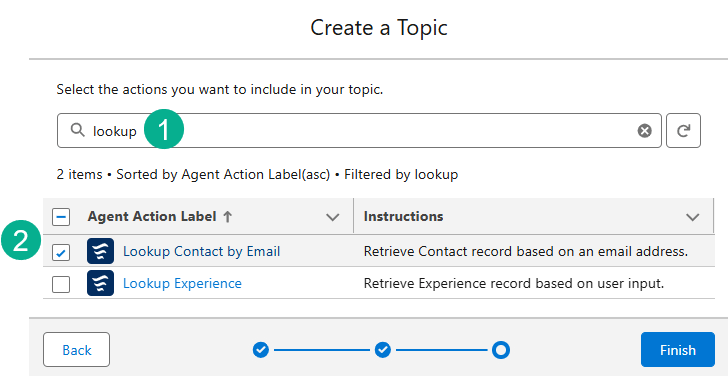
(1) Search for Lookup.
(2) Select the box for Lookup Contact by Email.

(1) Search for “Recent”.
(2) Select “Get Most Recent Bookings by Contact.

(1) Search for Lookup again.
(2) Select Lookup Experience.
(3) Select Finish.
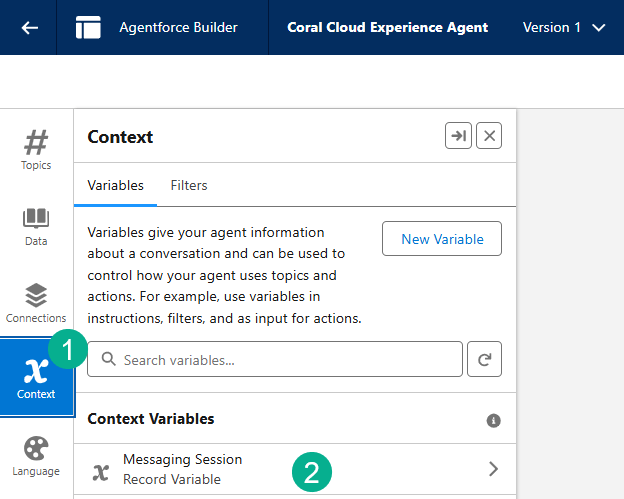
Next we need to set up the agent to capture the contact’s email.
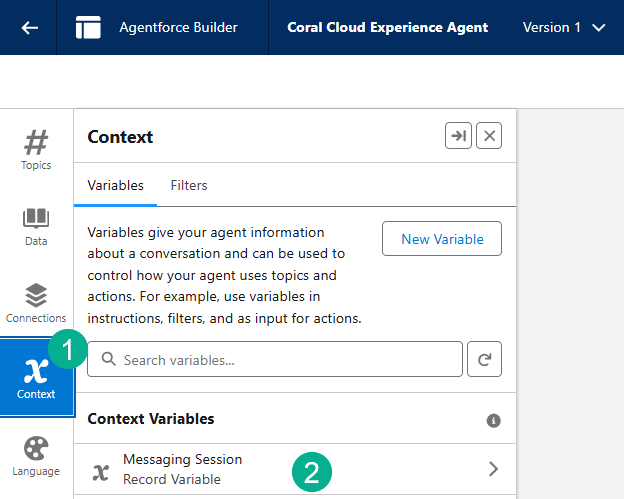
(1) Select Context.
(2) Select Messaging Session.
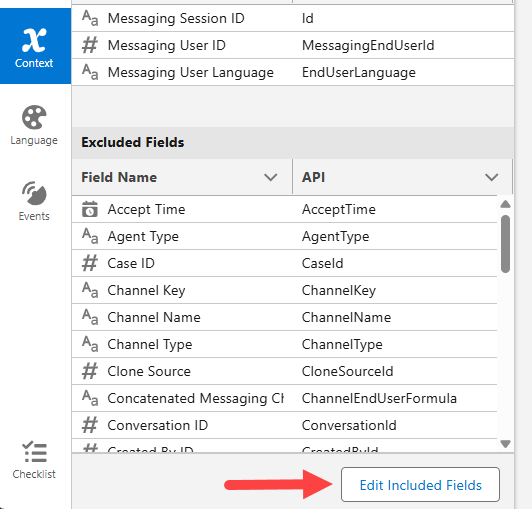
Select Edit Included Fields.
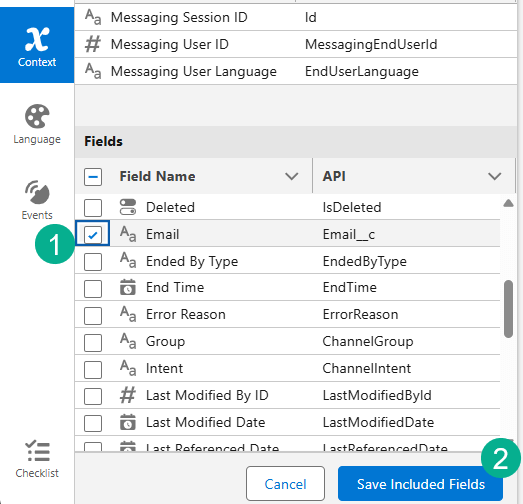
(1) Select the checkbox next to Email.
(2) Select the Save Included Fields box.
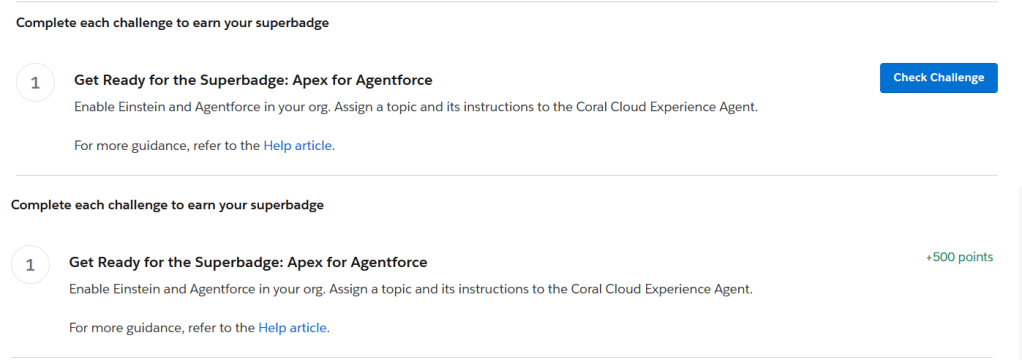
That completes Exercise 1. Check to verify you have completed the challenge.
And we’ll see you in a few days for Exercise 2: Create an Invocable Apex Class to Call an Existing Functionality.
Interested in building a Proof of Concept of an Agent, we can help. Sign up for a free discovery session to build your first Agent. https://howtoagentforce.com/agentforce-agent-poc/
 Let's learn AgentForce Together!