In this blog we will build a prompts using Einstein Prompt Builder in Salesforce. We’ll be following the AgentForce workshop training provided by Salesforce located here: https://developer.salesforce.com/agentforce-workshop/prompt-builder/1-field-generation
There are six separate sections of the AgentForce workshop, we’ll be tackling the Prompt Builder session today.
Prompt #1: Create a Field Generation Template. A Field Generation template will automatically generate descriptions based on CRM data, in the Workshop’s use case for Coral Cloud Resorts experiences.
Why are we using AI for this use case?
Being Coral Cloud Resorts we have amazing experiences for our guests to make the most of their vacation. The problem is that we don’t have the staff or skills to write amazing copy about each one. How can we use AI to solve this problem.
In our exercise today we’ll show how AI can elevate how we describe the resorts amazing experiences from a boring, non-descript description like this:
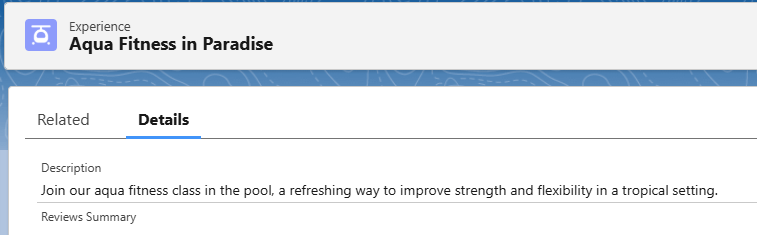
To a detailed and motivating description that romances the experience like this:

Best of all this can all be done with clicks, not code with Prompt Builder!
Step I: Enable Einstein so that Prompt Builder is available
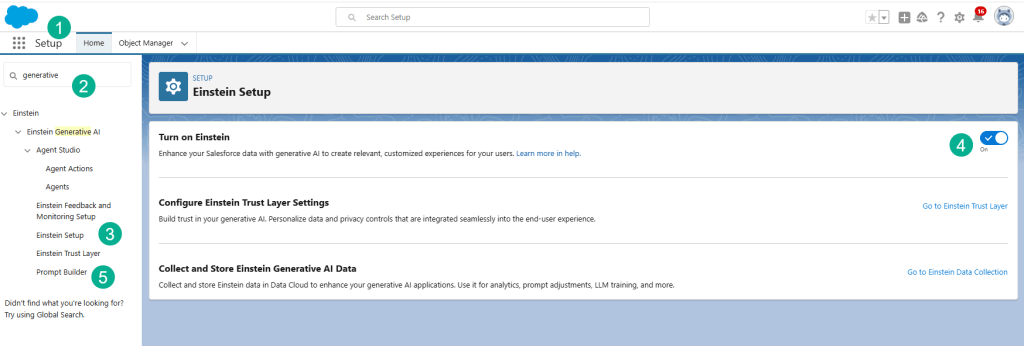
(1) Under Setup in Salesforce.
(2) In the search bar search for “Generative”.
(3) click on Einstein Setup.
(4) Turn on Einstein.
(5) You will see Prompt Builder appear.
Step II: Create the Field Generation Template
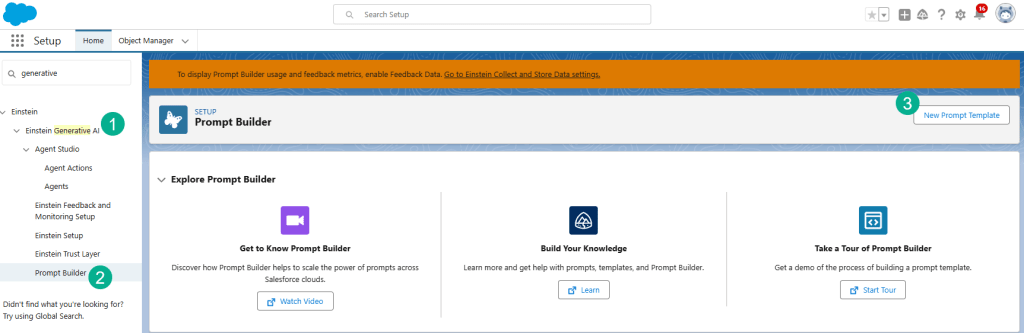
(1) Under Einstein Generative AI.
(2) Select Prompt Builder.
(3) Select New Prompt Template
Configure the template as follows
| Field | Value |
| Prompt Template Type | Field Generation |
| Prompt Template Name | Generate Experience Description |
| API Name | Keep default |
| Template Description | This template is used to generate a description for a resort experience. |
| Object | Experience |
| Object Field | Description |
When complete it should look like this.
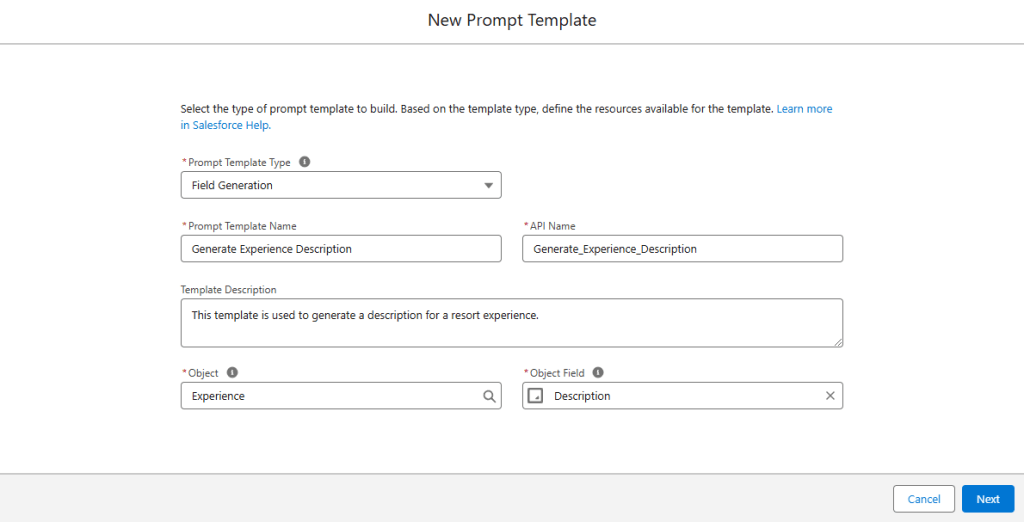
Click Next.
Paste the following text into the Prompt Template Workspace.
You are a marketer at ORGANIZATION_NAME.
The resort provides experiences guests can book throughout the day.
Write a marketing description for the experience below.
Make it sound unique and exciting.
Highlight the benefits of the experience.
The description should be between 80 and 100 words.
Experience name: EXPERIENCE_NAME
Type: EXPERIENCE_TYPE
Location: EXPERIENCE_LOCATION
Duration: EXPERIENCE_DURATION
Level: EXPERIENCE_LEVEL
Capacity: EXPERIENCE_CAPACITY
To populate the values from each object/merge field use the table guide below:
| Placeholder | Merge Field |
| ORGANIZATION_NAME | Current Organization > Name |
| EXPERIENCE_NAME | Experience > Experience Name |
| EXPERIENCE_TYPE | Experience > Type |
| EXPERIENCE_LOCATION | Experience > Location |
| EXPERIENCE_DURATION | Experience > Duration Hours |
| EXPERIENCE_LEVEL | Experience > Activity Level |
| EXPERIENCE_CAPACITY | Experience > Capacity |
And replace each field in the prompt.
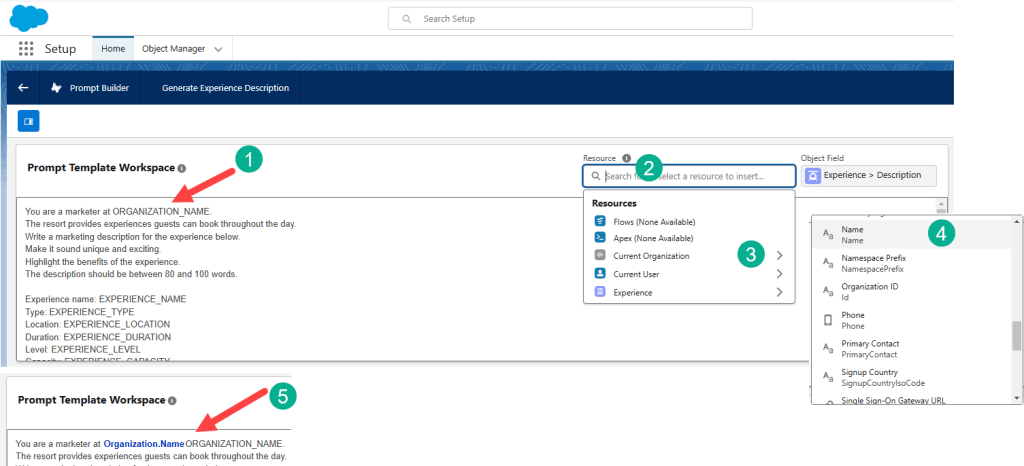
(1) Select the field you want to replace and put your cursor before or after.
(2) Click on the Resource search bar.
(3) Look for the object, in this case Current Organization.
(4) Scroll down until you find “Name”.
(5) When selected the field will populate in blue. Delete the plain text version.
Follow the same steps for each field.
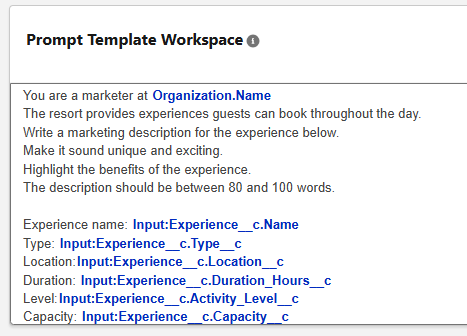
Now let’s preview the results.
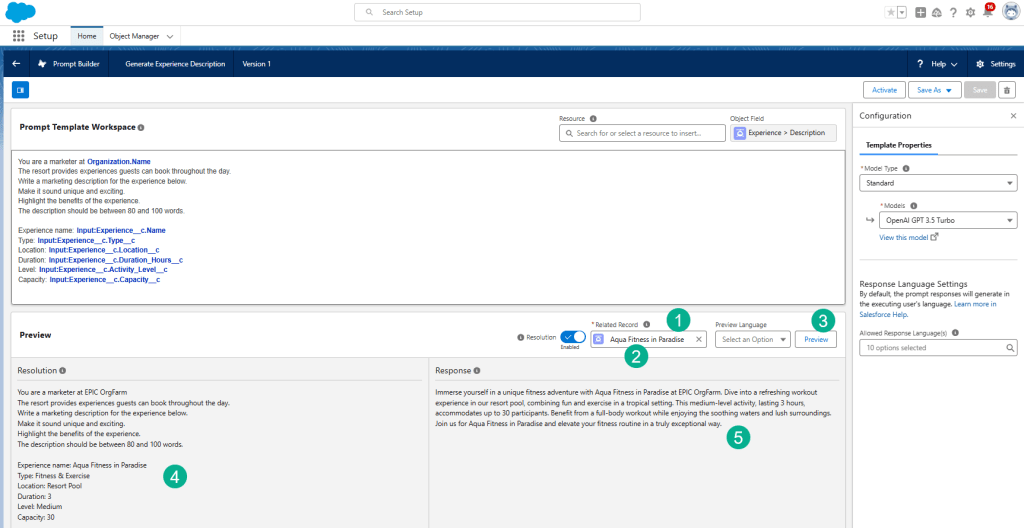
(1) In the Related Record area.
(2) Type in “Aqua Fitness in Paradise” and that experience record should pop up.
(3) Click on the Preview button.
(4) In the resolution window you should see the data populated from the fields in the prompt.
(5) And in the Response window see the Description field populated by the LLM.

Once complete, click Activate.
Step III: Bind the template to the Experience Description field
In this walkthrough we are going to create a much improved, AI generated text in the Description field of one of the experiences in the Coral Cloud resort.
Here’s the current experience description which is nice but watch what the AI Prompt Builder engine can create!
Navigate to the Aqua Fitness in Paradise Experience record.
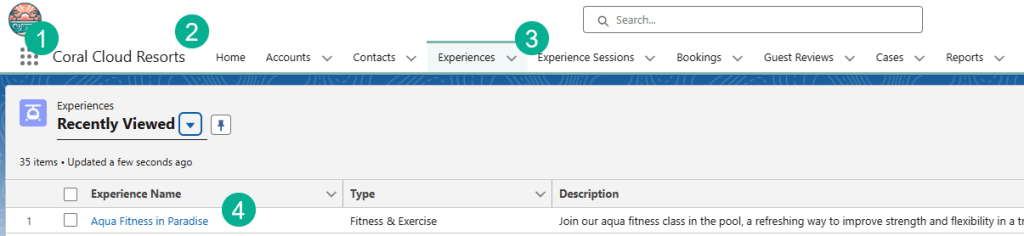
(1) Click the nine dots in the upper right hand corner.
(2) Search for the Coral Cloud Resorts app.
(3) Click on the Experiences tab.
(4) Aqua Fitness in Paradise should be at the top, click this record.
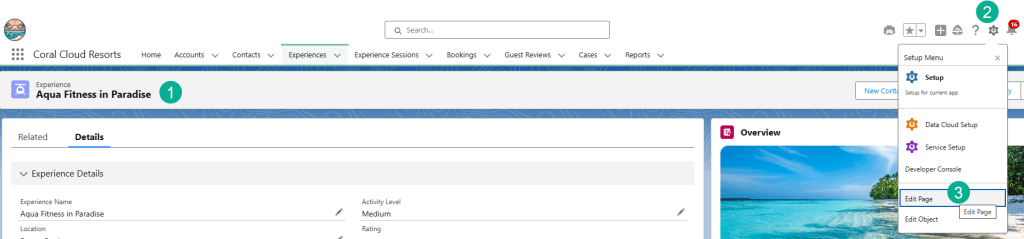
(1) In the Aqua Fitness in Paradise page.
(2) Click on the Setup icon.
(3) And click Edit Page.
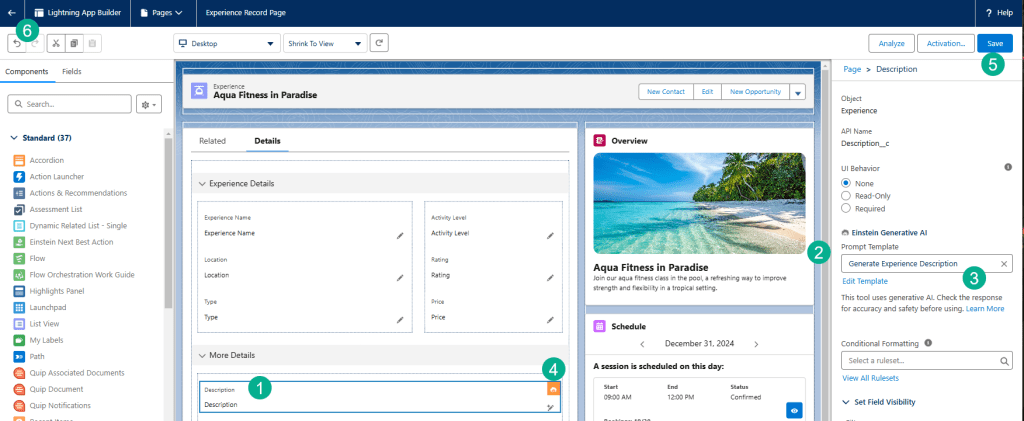
(1) Click on the Description field in the page layout.
(2) In the Prompt Template in the column on the right.
(3) Select Generate Experience Description.
(4) When you do, you’ll see the Einstein icon appear in the description field.
(5) Click Save.
(6) Once saved, click the back arrow button.
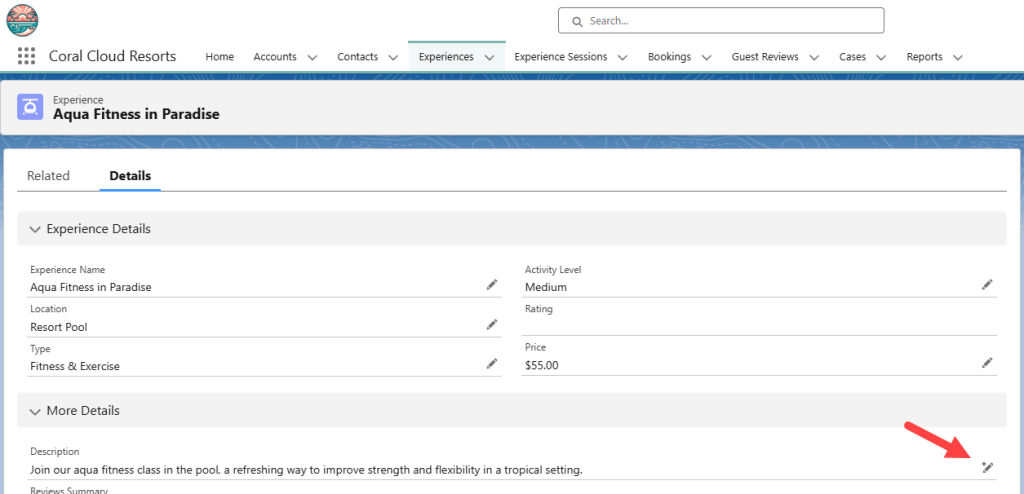
Click the edit button on the description field.
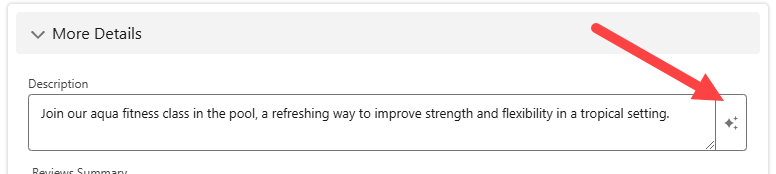
Click the Einstein Generate button next to the Description input field and watch as Einstein now generates an amazing detailed description for this experience using the Prompt Builder logic.
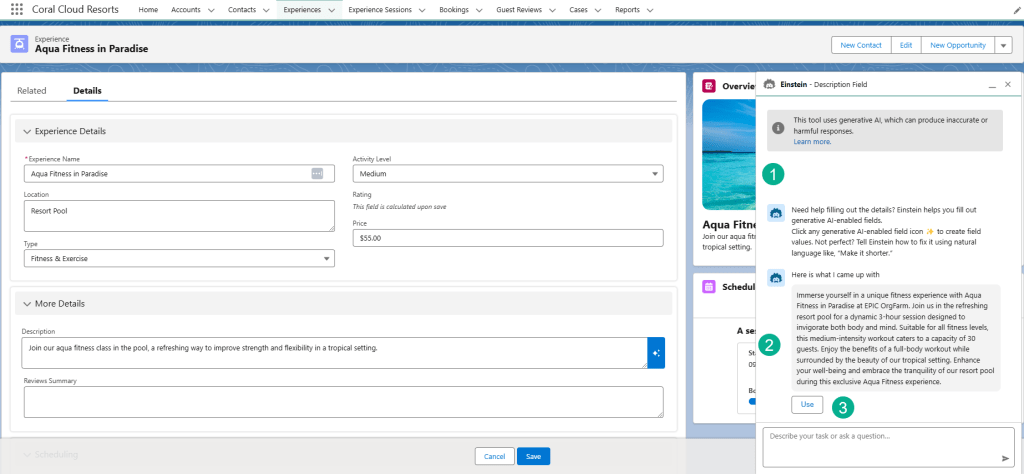
(1) A window pops up and you can watch Einstein do its thinking.
(2) As it generates a detailed description for the experience.
(3) If it looks good to you click Use.
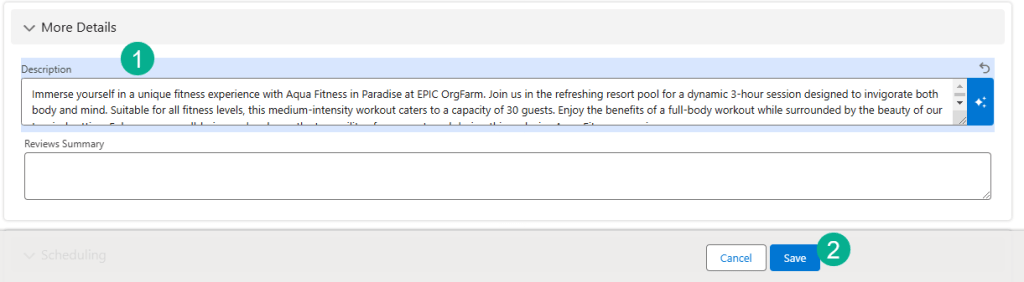
(1) That will populate the Description field with the AI Prompt Builder text.
(2) Click Save and you are done.
Congratulations you’ve created your first Prompt with Prompt Builder and leveraged Generative AI to populate a custom description versus spending hours or hiring a copywriter.
In our next blog, we’ll continue to build out another Prompt Builder template or we might go straight to AgentForce to build our first agent. Thank you for being part of the magic!
 Let's learn AgentForce Together!