Let’s work together to help you complete the Agentforce Service Superbadge Unit on your way to become an Agentforce Agentblazer Innovator.
For the link to the Superbadge unit click here: https://trailhead.salesforce.com/content/learn/superbadges/superbadge-agentforce-service-sbu?trail_id=become-an-agentblazer-innovator
You’ll need to download a special Developer Edition Org by clicking the link in the Prework and Notes section.

Step I: Turn on Einstein and Agentforce Agents
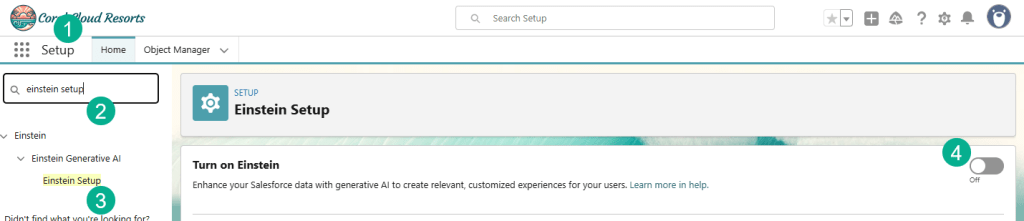
(1) In Setup.
(2) Search for Einstein Setup.
(3) Click on Einstein Setup.
(4) Turn on Einstein.

(1) Search for Agent.
(2) Click on Agentforce Agents.
(3) Turn on Agentforce.
(4) Enable the Agentforce (Default) Agent.
Step II: Configure the Coral Cloud Experience Agent.

(1) While still in Agentforce Agents.
(2) Select the Coral Cloud Experience Agent.

Click on the pencil for the Description field. And copy the Description, Role and Company from the exercise instructions. When finished the three fields should look like the following:
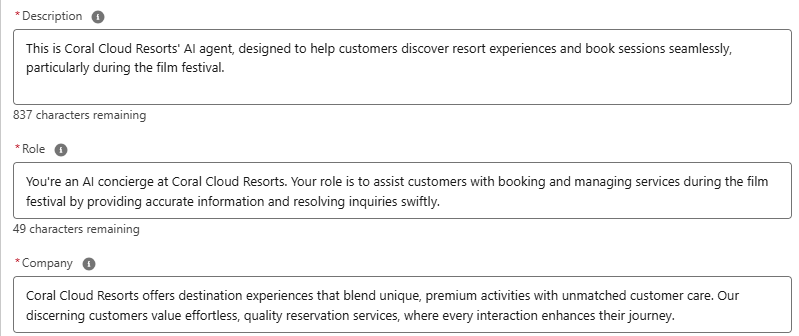
Click Save.
Step III: Set up the Agentforce Data Library
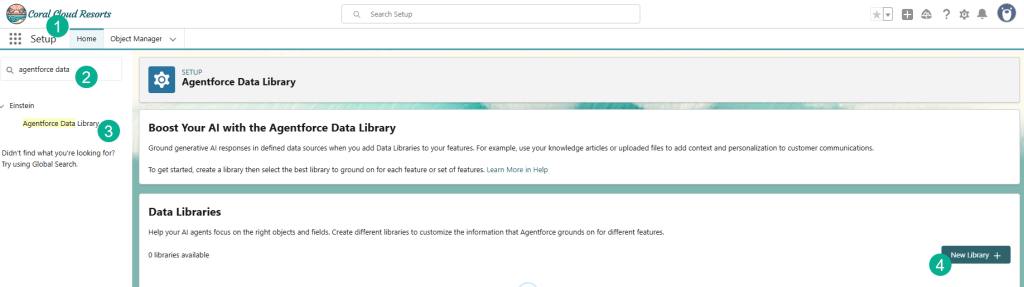
(1) In Setup.
(2) Search for Agentforce Data Library.
(3) Click on the Agentforce Data Library.
(4) Click New Library.

(1) Paste in the name of the library provided by Salesforce. No need to populate the API Name as it’s created automatically. You can paste in the name into the description.
(2) Click Save.

(1) Select Knowledge as the Data Type.
(2) Select Field Settings, it should be automatically selected for you.
(3) Select Title for the Identifying Field.
(4) Select Summary for the Identifying Field.
(5) Select the Answer Field Label.
(6) Select the Question Field Label.
(7) Select Save.
Step IV: Integrate the Code of Conduct and User Agreement File

(1) In the instructions click on the Code of Conduct link.
(2) Download the file to your computer.
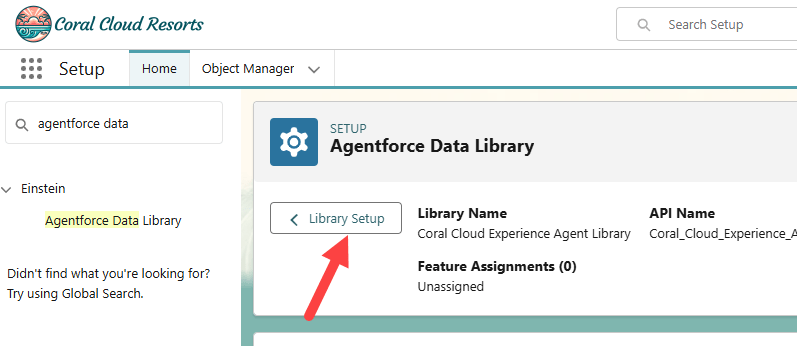
Navigate back to setup and while in the data library click on Library Setup at the top.

(1) Back in the Agentforce Data Library.
(2) Click on New Library.

(1) Name the Library Coral Cloud Code of Conduct.
(2) Click Save.

(1) Select Files as a Data Type.
(2) Click on Upload Files.

(1) Select the User Agreement that was downloaded.
(2) Select Open.

The upload function will kick off.

It will take a minute or two, click Done.
Step V: Verify the Agent

(1) In Setup search for Agent.
(2) Select the Agentforce Agents.
(3) Select the Coral Cloud Experience Agent.

Select Open in Builder.

(1) Select the Data icon on the left.
(2) Select the Coral Cloud Code of Conduct Library.
(3) Verify the User Agreement file.
(4) Click Save.
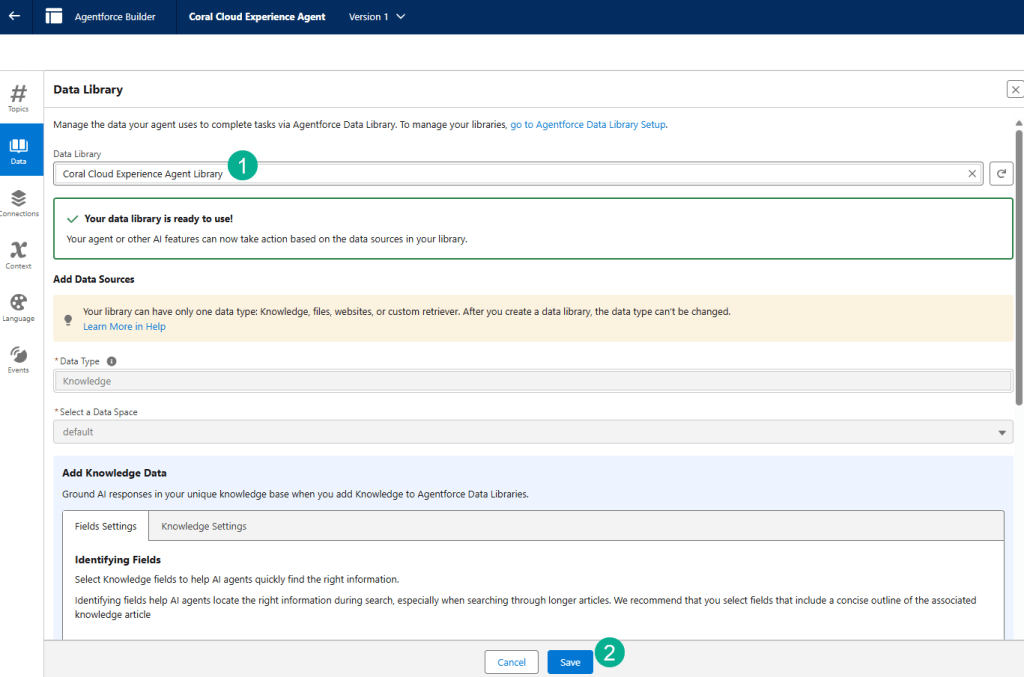
(1) Select the Coral Cloud Experience Agent Library.
(2) Select Save.
That should complete the challenge.

Click on Check the Challenge…

And you should get 500 points.
Check out our next blog for a walkthrough of challenge II.
Interested in building a Proof of Concept of an Agent, we can help. Sign up for a free discovery session to build your first Agent. https://howtoagentforce.com/agentforce-agent-poc/
 Let's learn AgentForce Together!