In this exercise we are pulling in reviews from guests from their own experience. Reviews from actual guests can be the most powerful testimonials and can be helpful for future guests to consider whether to choose the experience at the resort.
If you missed Exercise 2, Create an Invocable Apex Class to Call an Existing Functionality for the Apex click here: https://howtoagentforce.com/2025/09/13/how-to-finish-exercise-2-create-an-invocable-apex-class-to-call-an-existing-functionality-for-the-apex-for-agentforce-superbadge/
Here’s the link to the Superbadge trail for Apex for Agentforce:
https://trailhead.salesforce.com/content/learn/superbadges/superbadge-apex-for-agentforce
Step I: Navigate to the GuestReviewRatingCalculator class in Developer Console
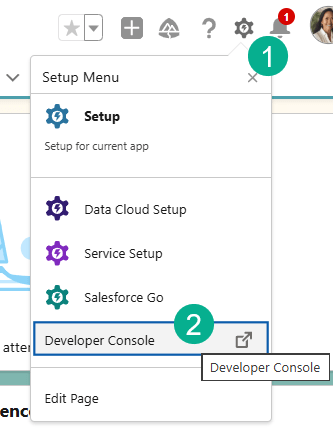
(1) Click on the gear icon in the upper right corner.
(2) Select the Developer Console.
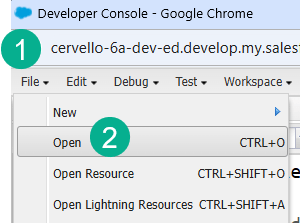
(1) Select File.
(2) And Open.
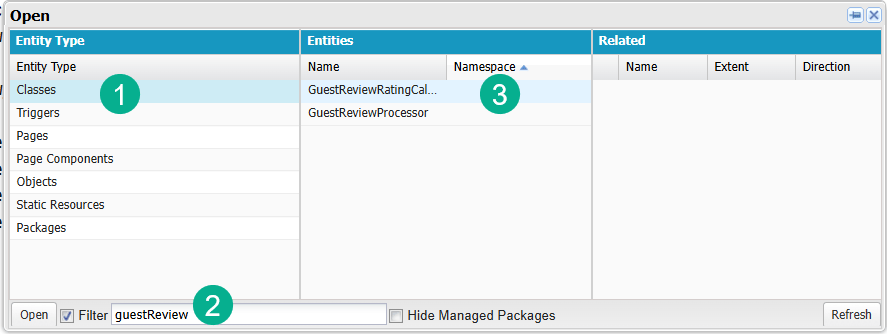
(1) Select Classes.
(2) Search for GuestReview.
(3) Select GuestReviewRatingCalculator.
Step II: Open up the Experience Guest Reviews Evaluator prompt template

(1) In setup search for Prompt Builder.
(2) Select Prompt Builder.
(3) Click on the Experience Guest Reviews Evaluator.
Step III: Configure Prompt Template Input API Name
In our Prompt you can see the api name of the input value experience.


We are going to replace the value above with that input value on line 10.

Step IV: Specify the prompt template API name to generate a response
You are going to modify the following code on line 21:


(1) Modify the code to include the connect api syntax.
(2) Pulling from a prompt template.
(3) Include the name of your prompt template.
(4) Add the Input value.
(5) From the syntax above.
Here’s the line of code:
ConnectApi.EinsteinPromptTemplateGenerationsRepresentation generationsOutput= ConnectApi.EinsteinLLM.generateMessagesForPromptTemplate('Experience_Guest_Reviews_Evaluator',executeTemplateInput);
Step V: Extract the response text from the generations property

We are going to modify the code on line 25.
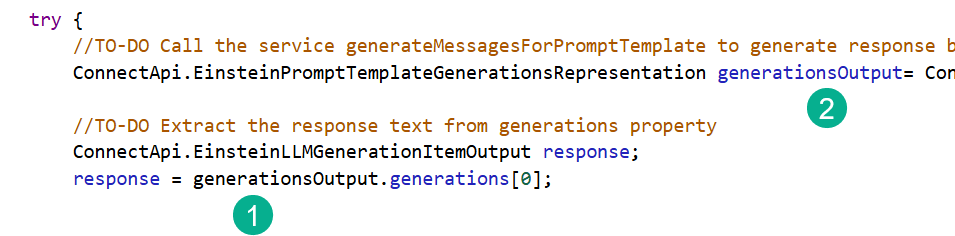
(1) The response will come from the generationsOutput from the LLM.
(2) Copy the syntax from the previous line of code.
Here’s the code:
response = generationsOutput.generations[0];
Save your class and check to see if you’ve completed the challenge.
Join us for the fourth and final challenge next.
 Let's learn AgentForce Together!