This is the last exercise for the Apex for Agentforce Superbadge. In this exercise we’ll be creating the Process Guest Reviews action and adding it to our Agent to pull in the functionality of the Apex work we accomplished in previous exercises.
If you missed Exercise #3 please click here: https://howtoagentforce.com/2025/09/20/how-to-finish-exercise-3-invoke-a-prompt-template-from-an-apex-class-for-agentforce-superbadge/
Here’s the link to the Superbadge trail for Apex for Agentforce:
https://trailhead.salesforce.com/content/learn/superbadges/superbadge-apex-for-agentforce
Step I: Update the Guest Reviews and Campaign Permission Set
First we need to update the permission set so that it grants permission to use the GuestReviewProcessor Apex class.
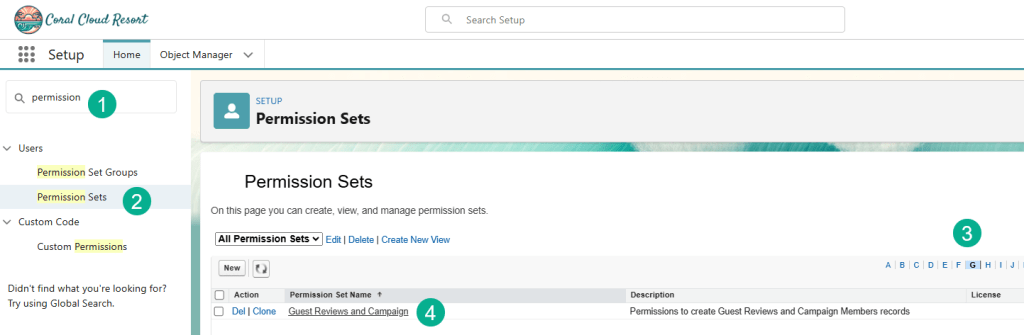
(1) In Setup search for Permission sets.
(2) Click on Permission Sets.
(3) Click on the G set of Permission Sets.
(4) Select the Guest Reviews and Campaign permission set.
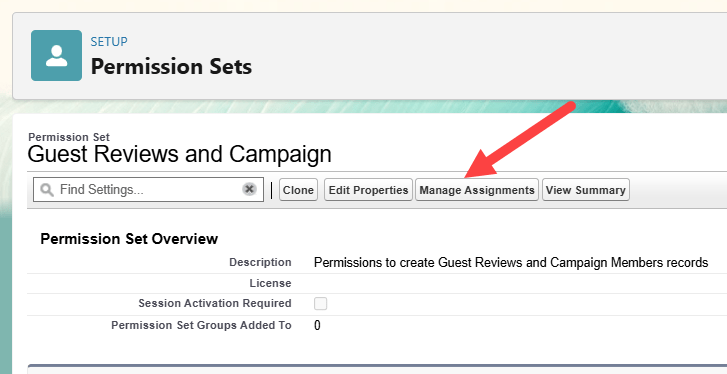
Click on Manage Assignments.
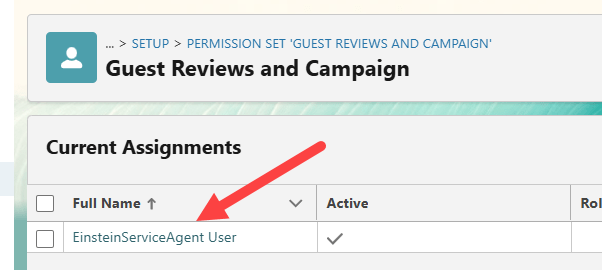
We click on the Einstein Service Agent User.
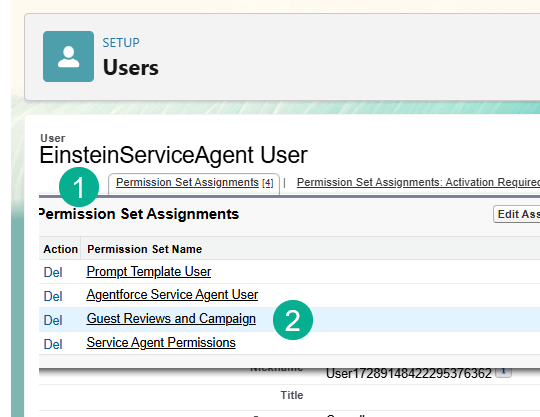
(1) Hover over Permission Set Assignments.
(2) Select Guest Reviews and Campaign.

Click on Apex Class Access.
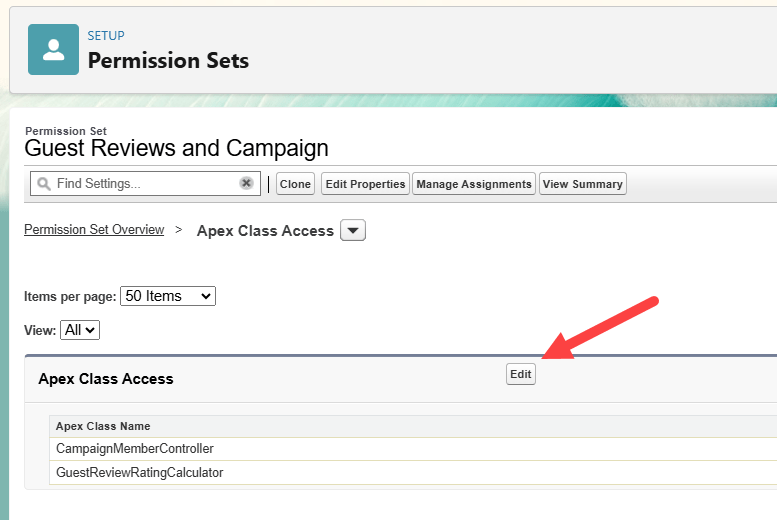
Click Edit.
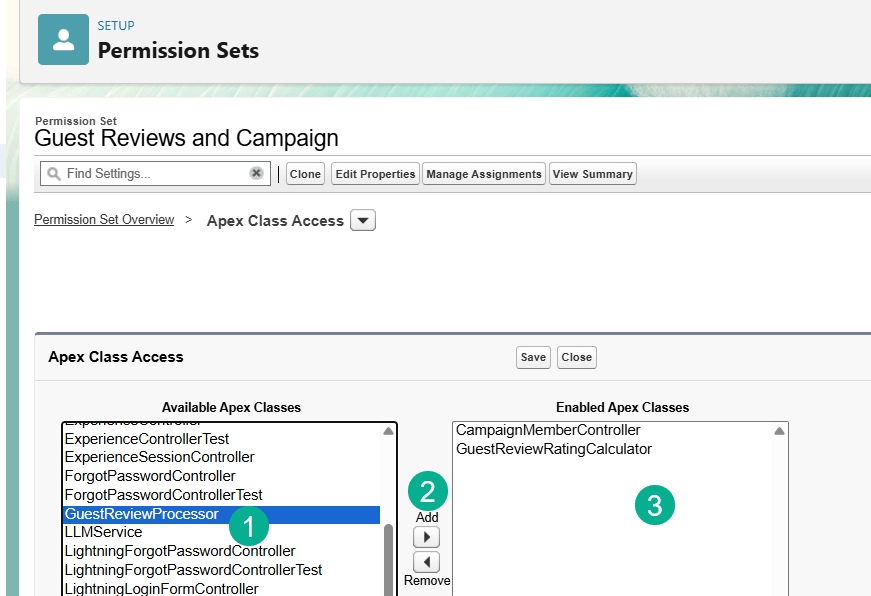
(1) Search for GuestReviewProcessor.
(2) Click Add.
(3) It should show up in the Enabled Apex Classes
Click Save.
Step II: Create Process Guest Review Action
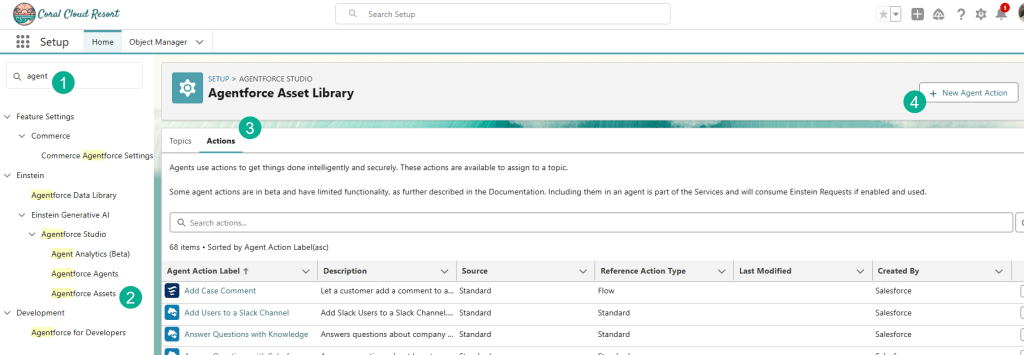
(1) In Setup search for Agentforce Assets.
(2) Select Agentforce Assets.
(3) Click on the Actions tab.
(4) Select New Agent Action.

(1) Select Apex type.
(2) Select Invocable Method Category.
(3) Select Process Guest Reviews Action.
(4) Select Next.

(1) Add Loading in the Loading Text.
(2) Everything else should be configured for you. Select Finish.
Step III: Add Process Guest Review Action to the Agent
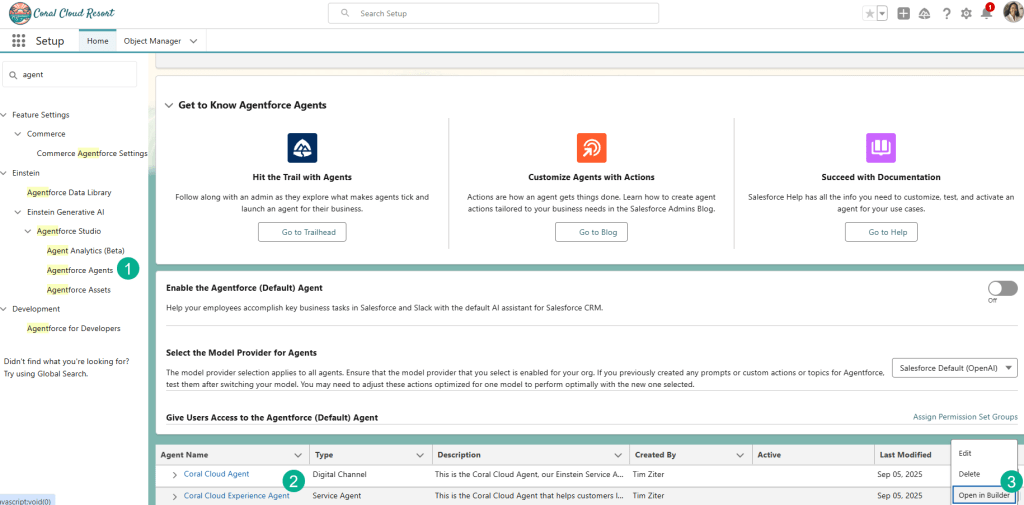
(1) Navigate back to your Agent in Setup.
(2) Select the Coral Cloud Experience Agent.
(3) In the box selector on the right select Open in Builder.
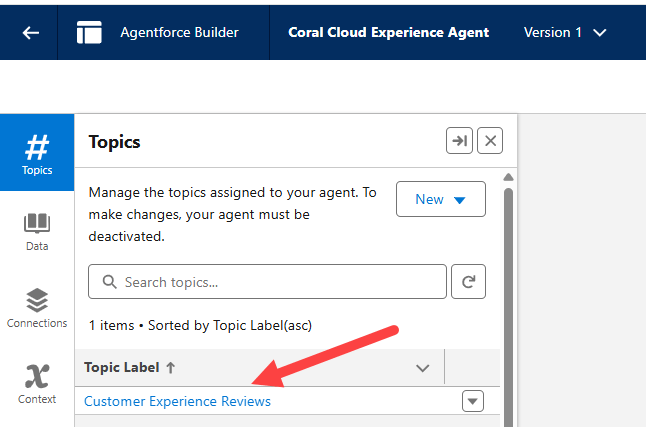
Select the Customer Experience Reviews Topic.

(1) Select This Topic’s Actions.
(2) Click on New.
(3) Select Add from Asset Library.

(1) Select Process Guest Reviews.
(2) Click Finish.
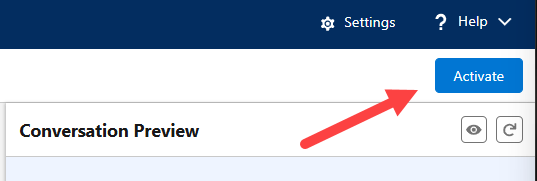
Click Activate to activate the Agent.
And that’s it!
Go back to the Superbadge and select Check Challenge.

And your result should be:

Congratulations!
 Let's learn AgentForce Together!