The Agentblazer Innovator Challenge is an excellent exercise to strengthen you AI skills with Agentforce. It’s a fantastic combination of trails and hands-on exercises which we will be blogging about in the coming weeks.
Here’s the link to the Agentblazer Innovator Challenge: https://trailhead.salesforce.com/content/learn/trails/become-an-agentblazer-innovator?utm_source=trailhead&utm_medium=email&utm_campaign=thmktgchallenge
The first exercise is the Prompt Builder Templates Superbadge. Let’s walk through how to accomplish this section. Here’s a link to this Superbadge: https://trailhead.salesforce.com/content/learn/superbadges/superbadge_prompt_builder_templates_sbu?trail_id=become-an-agentblazer-innovator
Over the next four blogs we’ll cover all four exercise. In this blog post we’ll cover exercise I:

Part I: Set up Prompt Builder
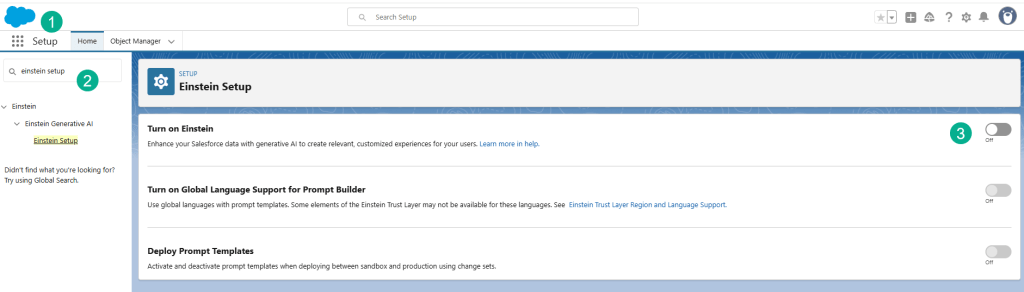
(1) In Setup.
(2) Search for Einstein Setup.
(3) Turn on Einstein.
Step II: Create the Prompt Template
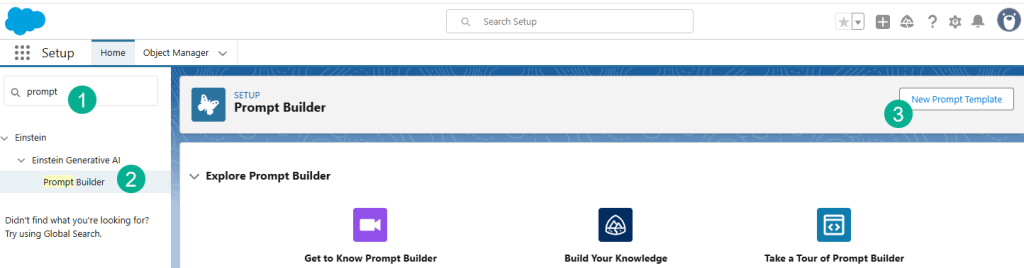
(1) Search for Prompt in the search bar.
(2) Select Prompt Builder.
(3) Select New Prompt Template.

(1) Select a Flex template.
(2) Name it Translate Survey Input.
(3) The API Name will automatically appear.
(4) You can put the name in the description.
(5) In the Sources you’ll want to select Account.
(6) And select the Account object.
(7) And then add Resources.

(1) You’ll want to add the Contact and select the Contact Object.
(2) And last add Fitness.
(3) And make sure you select the Fitness Object.
(4) Click Next.
Now go back to the documentation and copy the recommended prompt text:

And then paste it into your prompt:

(1) Paste the text into your prompt.
(2) Move your curser right before the [Survey Input Field] as you’ll be adding the resource in the next step.
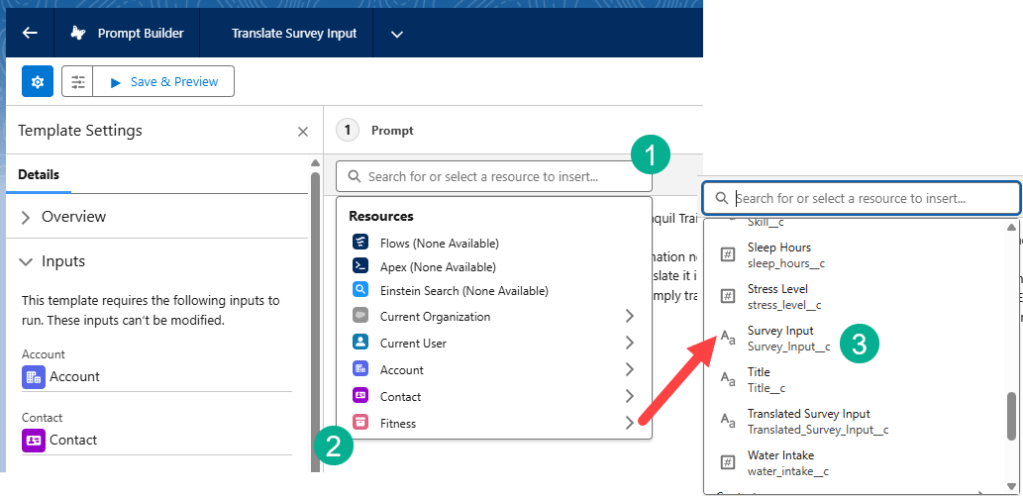
(1) Click on Insert Resource.
(2) Scroll down to the Fitness Object.
(3) Navigate to the Survey Input field.
Follow the steps for both [Survey Input Field] variables in the prompt. And the prompt should look like this.

Step III: Preview the Prompt with Test Data

(1) Click on the Preview Button in the upper left.
(2) You may need to select the Inputs icon to enter in the test data points.
(3) Enter in Kyrstin Strong for the Contact and Account.
(4) In the Fitness object search for Fitness Interest-0906
(5) In the preview you should see the following where the survey input is in a non-english language and needs to be translated.
(6) You may need to activate your prompt to preview.
Now we need to hop over to the flow that will translate this field into english.
Step IV: Update Flow to translate variable

(1) Duplicate your browser tab and while in Setup search for flow.
(2) Click on the Flows item.
(3) Scroll down to “Translate Fitness Survey Input” and select it.
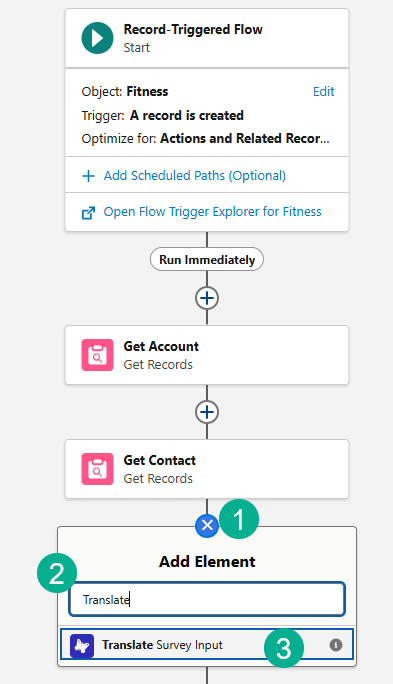
(1) Click on the plus sign circle below Get Contact Activity.
(2) In the search bar search for Translate Survey Input.
(3) And select the pre-created action activity created for you in this exercise.

(1) Paste in the name: Translate Survey Input
(2) You can use the same for the description.
(3) Enter in the Input values for Account, Contact and Fitness.
(4) For each object search for the object name, select the record that’s returned
(5) It should look like {!Get_Account}, {!Get_Contact} and {!$Record} before you click out of each field.
Save your flow.
Step VI: Add Update Translated Survey Input Update Record Activity
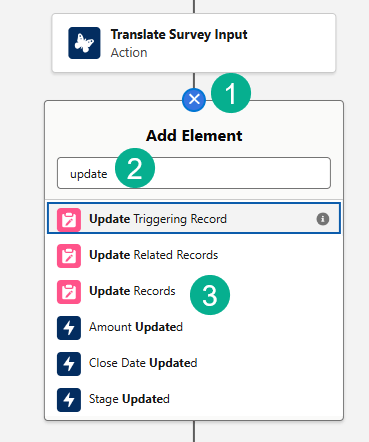
(1) Click on the circle plus icon below the Translate Survey Input activity.
(2) Search for Update.
(3) Select Update Records.
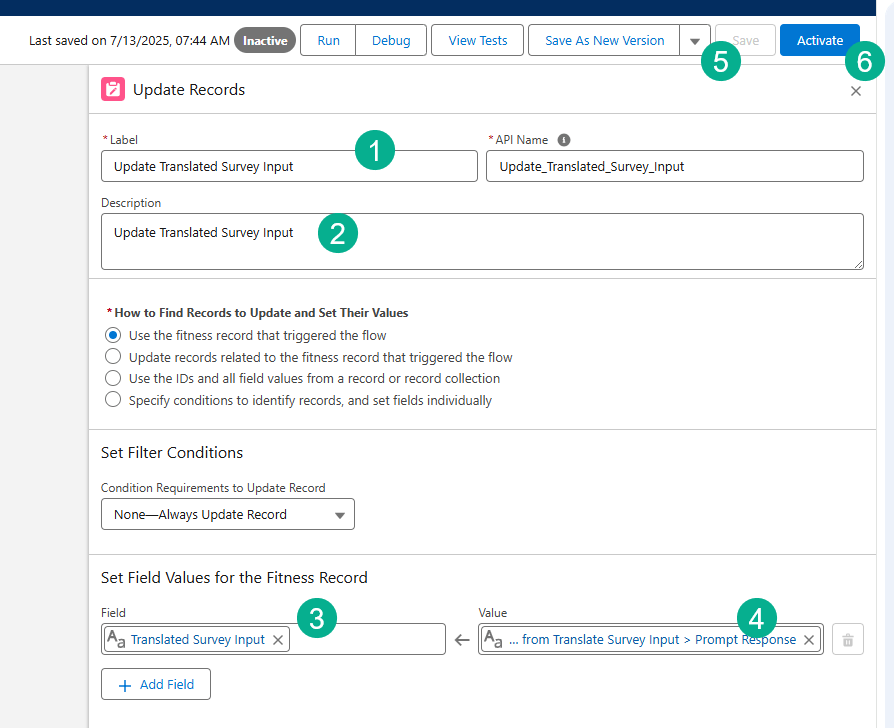
(1) Paste in the name: Update Translated Survey Input.
(2) You can use the same for the description.
(3) In the field paste in: Translated_Survey_Input__c.
(4) In the value paste in: {!Translate_Survey_Input.promptResponse}.
(5) Save the flow.
(6) Activate the flow.
Step VII: Test with Contact: Latisha Bryce
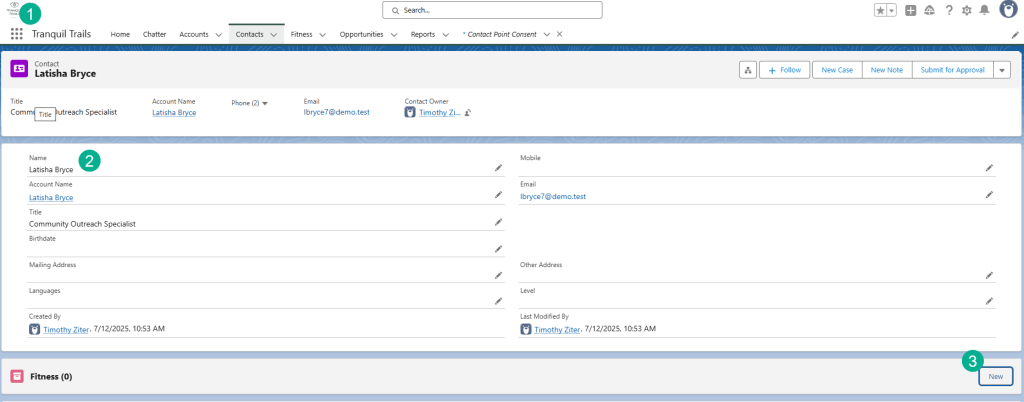
(1) In the nine dots search for Contact to pull you back into CRM home page. In the search bar at the top search for Latisha Bryce.
(2) Navigate to her contact record.
(3) Click New fitness record.

(1) In the Survey Input field enter: Ho sempre desiderato correre una maratona.
(2) In the Interest Type field enter: Running.
(3) Click Save.

You will see the translated value appear in the record based on the flow.
Step VIII: Complete the challenge
That should complete this challenge. You should be able to click on the Check Challenge button.
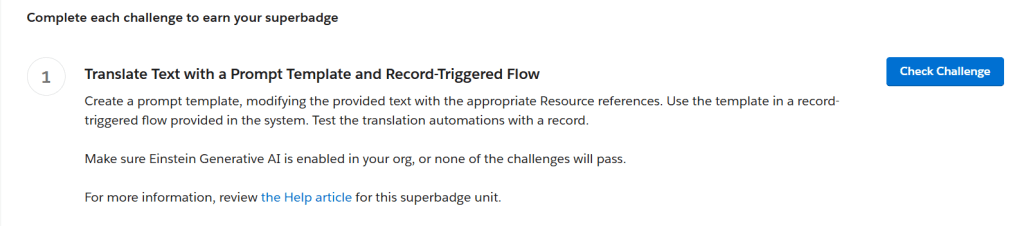
You might receive an error if you haven’t connected your new org. If you aren’t seeing your org in the launch screen:

Click on the three buttons and…
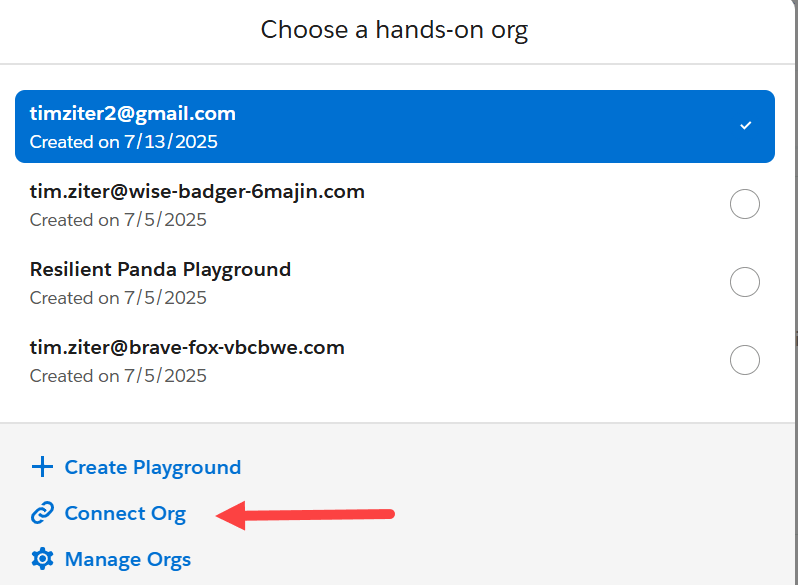
Connect the org you created above and you should be able to complete this challenge:

Look out for our next blog where we’ll cover the next challenge: Build an AI-Generated Summary of Related Records.
Interested in building a Proof of Concept of an Agent, we can help. Sign up for a free discovery session to build your first Agent. https://howtoagentforce.com/agentforce-agent-poc/
 Let's learn AgentForce Together!