We are back to help walk through the amazing exercises in the AgentBlazer Innovator challenge.
This blog post will cover Exercise II: Build an AI-Generated Summary of Related Records
For exercise I please review our prior blog: https://howtoagentforce.com/2025/07/13/how-to-finish-exercise-i-of-the-prompt-builder-templates-superbadge-unit-agentblazer-innovator-challenge/
Here’s the link to the Agentblazer Innovator Challenge: https://trailhead.salesforce.com/content/learn/trails/become-an-agentblazer-innovator?utm_source=trailhead&utm_medium=email&utm_campaign=thmktgchallenge
And here’s the link to the Prompt Builder Templates Superbadge Unit: https://trailhead.salesforce.com/content/learn/superbadges/superbadge_prompt_builder_templates_sbu?trail_id=become-an-agentblazer-innovator
In the first unit you created a prompt that translated text related to three objects. Now we want to take data from the client and output a customized list of fitness goals.
Step I: Create custom field on the Contact object (Interest Summary)
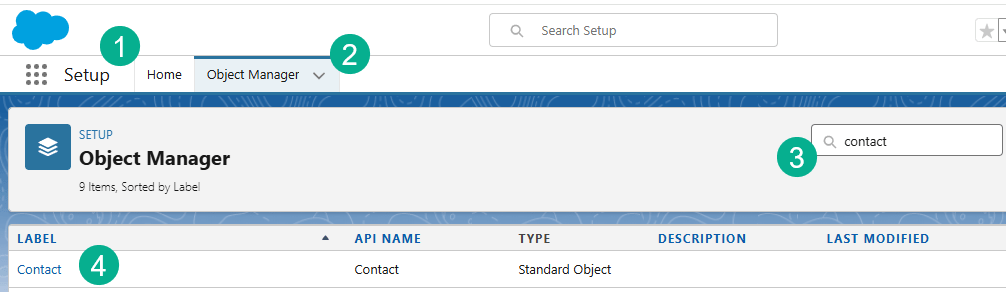
(1) In Setup.
(2) Click on the Object Manager.
(3) Search for Contact.
(4) Select the Contact object.
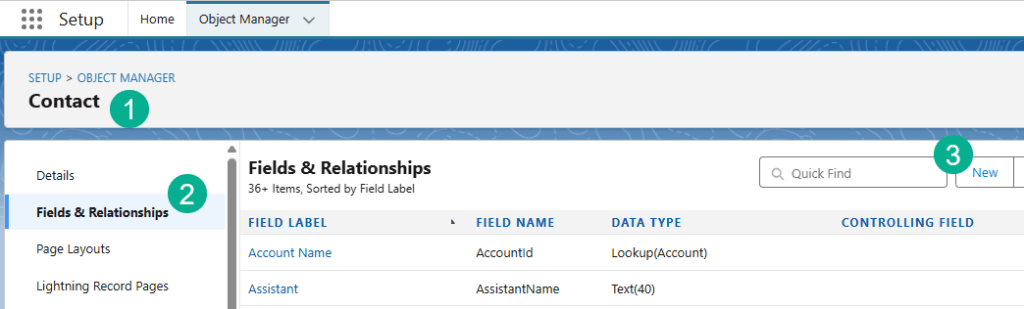
(1) In the Contact object.
(2) Select Fields & Relationships.
(3) Click “New”.

(1) Scroll down and select Text Area (Rich).
(2) Click Next.
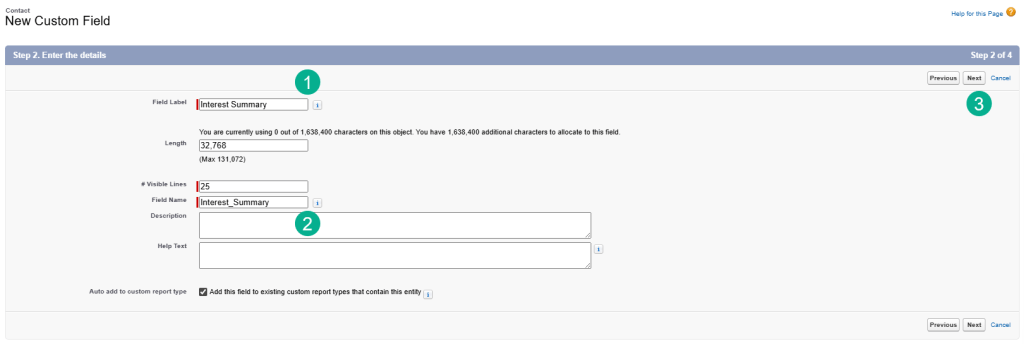
(1) Paste in the name: Interest Summary
(2) The API name should automatically be generated. No need to fill out a description.
(3) Click Next.
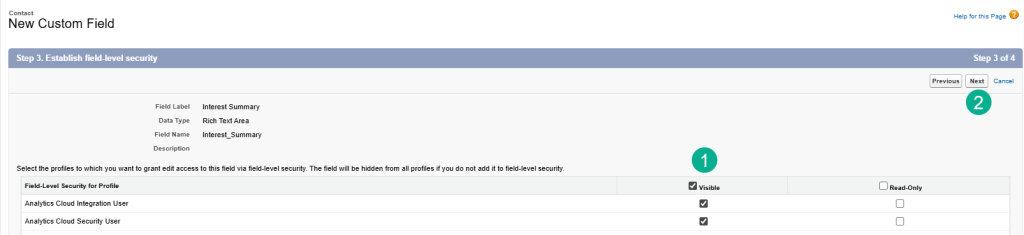
(1) This is optional, but you can select the Visible checkbox so all users can see the field.
(2) Click Next.
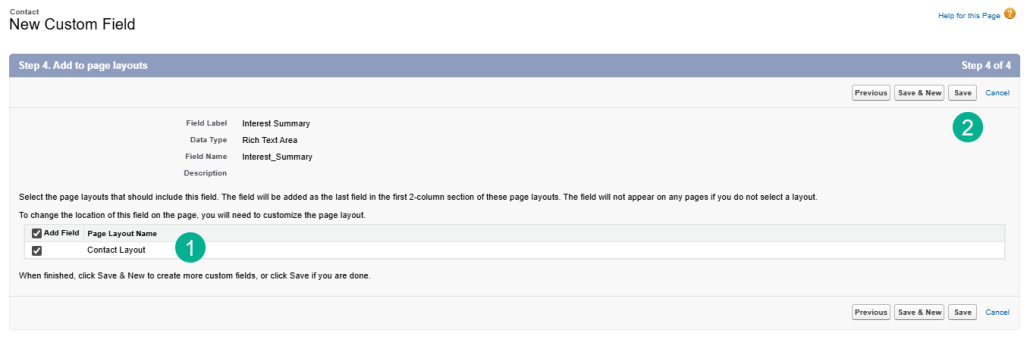
(1) Adding the field to the Contact Layout should already be set.
(2) Click Save.
Step II: Create New Prompt Template: Summarize Client Goals

(1) In Setup.
(2) Search for Prompt.
(3) Select Prompt Builder.
(4) Select New Prompt Template.

(1) Select the Field Generation Prompt Template Type.
(2) Enter the Summarize Client Goals for the Name. The API name will auto appear.
(3) Enter in the name into the description.
(4) In the Object Type search for “Contact”.
(5) Select the Interest Summary field.
(6) Click Next.
Step III: Edit the Prompt

Copy the prompt that Salesforce has provided in the exercise notes.

And paste it into the prompt.
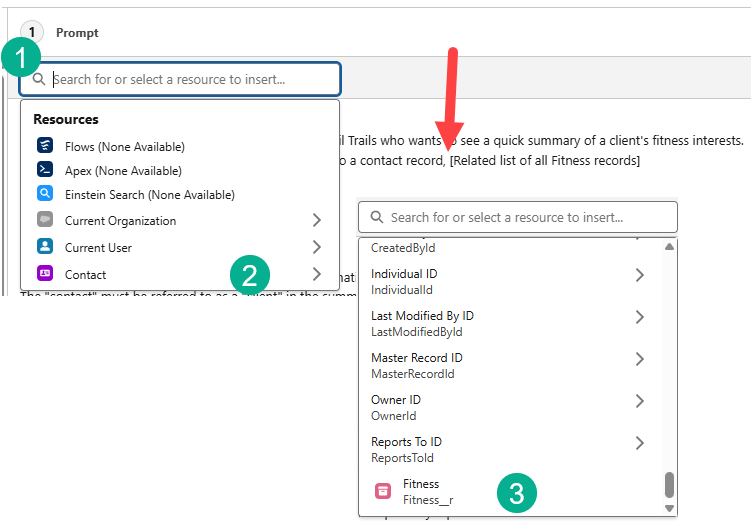
(1) Click on Insert Resource.
(2) Click on the Contact Object.
(3) Scroll down to the Fitness Object related list and select it.

When finished it should look like above.
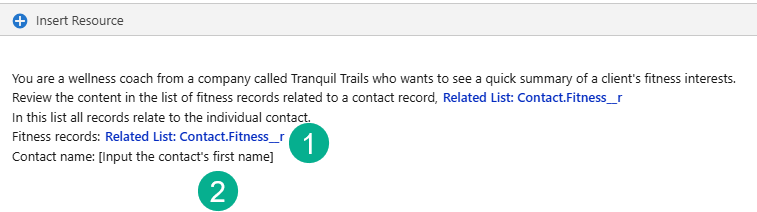
(1) Repeat the same steps further down in the prompt under Fitness records:
(2) We’ll need a different field for Contact Name.

(1) Click on Insert Resource.
(2) Select the Contact Object.
(3) Select First Name.
(4) The prompt should look like the following.
Save your Prompt template.
Step IV: Connect The Prompt Template to the Contact Record

(1) Select a Contact in the main CRM screen.
(2) Select the Setup button.
(3) Click Edit Page.
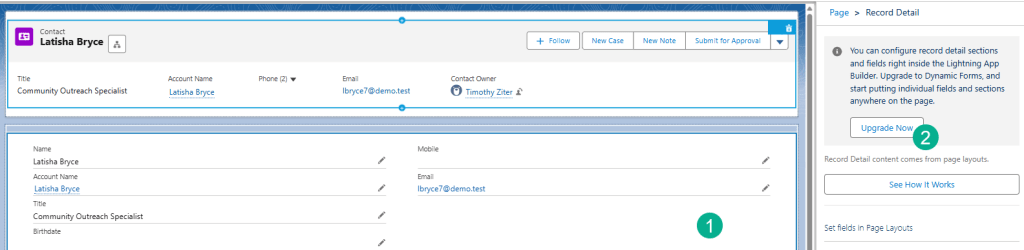
(1) Click on the record page which should create a pop up to upgrade.
(2) Click on the Upgrade Now button.

(1) Select the Contact Layout.
(2) Select Finish.

(1) Navigate down to the Interest Summary field and click on it.
(2) When you click on the Prompt Template field the Summarize Client Goals should come up automatically. If it doesn’t refresh your screen.
(3) Select Summarize Client Goals.
(4) Select Save.
Step V: Test New AI Generated Field

(1) Back in the main screen of CRM.
(2) Click on the search bar at the top.
(3) Search for the contact: Robinette Bullman.
(4) Select the contact.

(1) Navigate to the Interest Summary field.
(2) Click on the AI Icon.
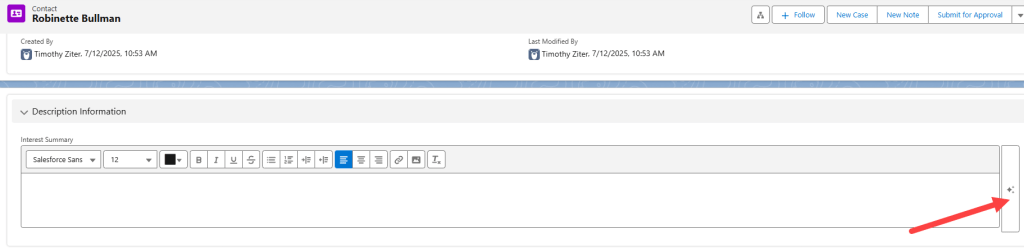
Click on the AI icon on the right.

(1) An Agent window will pop up filling out the details in the window.
(2) Click on Use.
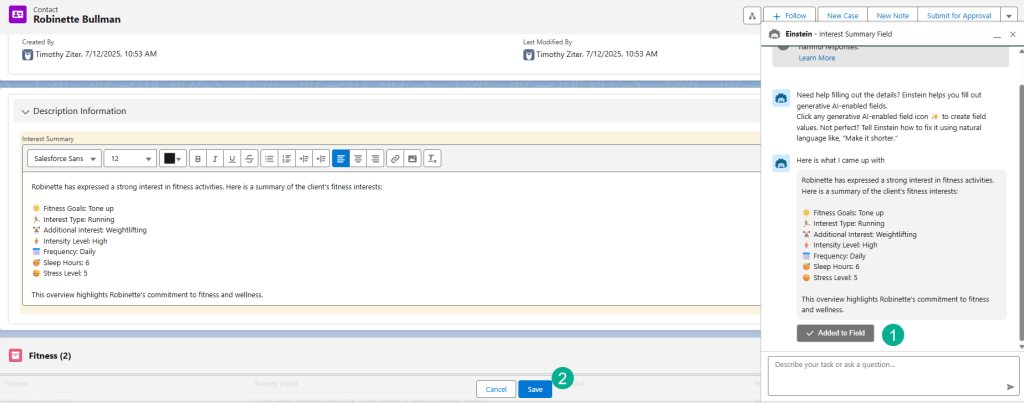
(1) The Agent window will show it added to the field.
(2) Click on Save.
Step VI: Check the Challenge.
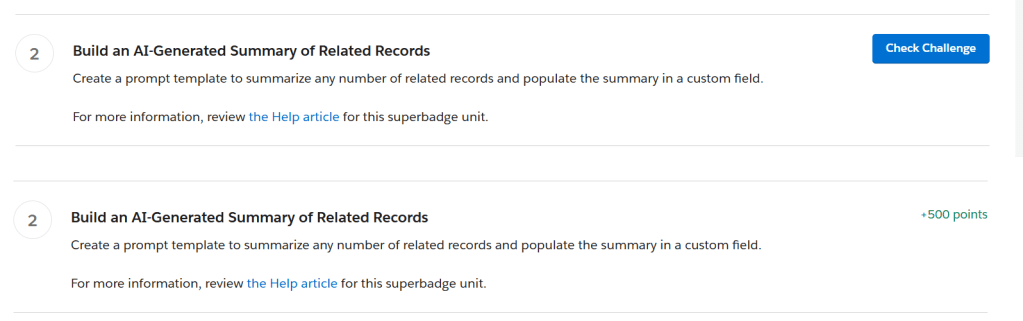
That’s it. You completed this challenge. Click on the Check Challenge button and you should see the +500 points change in a few sections.
In our next blog we’ll cover Section #3. Have fun.
Interested in building a Proof of Concept of an Agent, we can help. Sign up for a free discovery session to build your first Agent. https://howtoagentforce.com/agentforce-agent-poc/
 Let's learn AgentForce Together!