In this blog you will build your very first Agentforce Agent. Salesforce makes it incredibly easy and intuitive to create helpful agents in minutes.
Before we begin you’ll want to review our blog on how to get setup with Agentforce: https://howtoagentforce.com/2024/12/26/how-to-get-set-up-with-agentforce/ which will walk you through how to get access to a demo org that has Agentforce and everything you need to complete the following exercise.
We’ll be following along to the excellent exercises provided by Salesforce at the following link: https://developer.salesforce.com/agentforce-workshop/agents/1-get-started
We’ll be going through the following steps to create your first Agent:
(1) Enable Einstein
(2) Enable Agents
(3) Create a topic
(4) Explore standard agent actions
(5) Work with Agents in Agent Builder
Step I: Enable Einstein
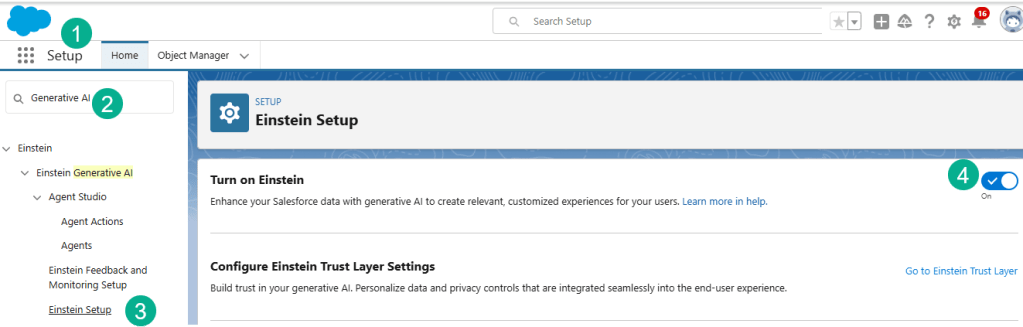
(1) In Salesforce Setup.
(2) In the search bar enter Generative AI.
(3) Click on Einstein Setup.
(4) Turn on Einstein.
Step II: Use Agentforce to enable Agents
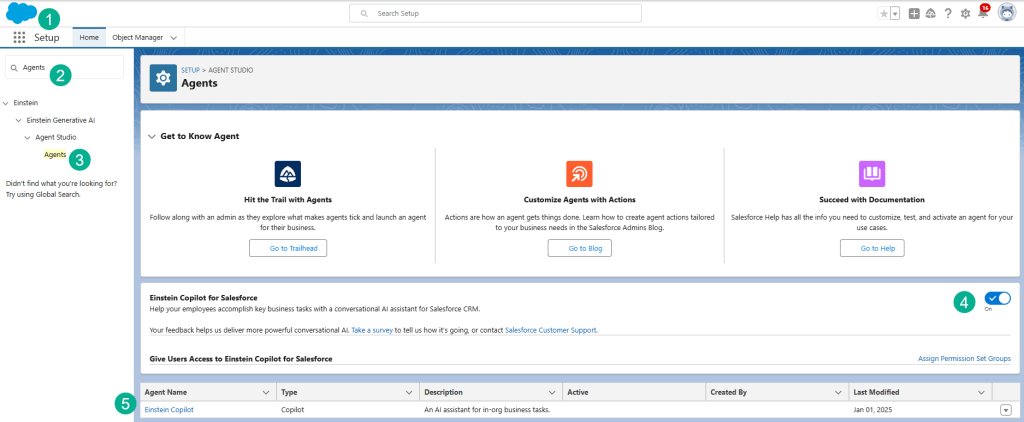
(1) Still in Setup.
(2) In the search bar type Agents.
(3) Click on Agents.
(4) Turn on Einstein Copilot for Salesforce.
(5) Click on Einstein Copilot at the bottom.

(1) Last click on Open in Builder.
Step III: Create a topic.

(1) When you enter Agent Builder it should default to the Topics section on the left.
(2) You might see default topics under Topic Label.
(3) Click the arrow box on the right of either topic.
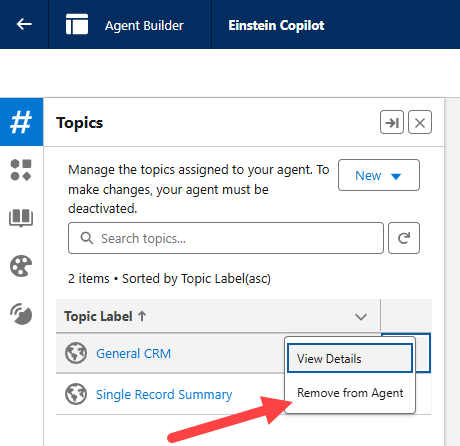
Click “Remove from Agent”.

(1) Click on the New button.
(2) Click on New Topic.
Fill in the topic information as follows:
| Field | Value |
| Topic Label | CustomerServiceAssistant |
| Classification Description | Engages and interacts with the user about any request related to the resort. This could be tasks such as identify and summarize records, answer queries, aggregate data, find and query objects, update records, or drafting and refining emails. |
| Scope | Your role is to assist a Customer Service Representative in supporting guests with inquiries about reservations and experiences available at the hotel. |
| Instruction | Never ask the user for an ID. Instead, ask for a record that’s relevant. |
When you are finished it should look like this:

(1) Don’t worry about entering anything for Example User Input.
(2) When you are ready click Next.
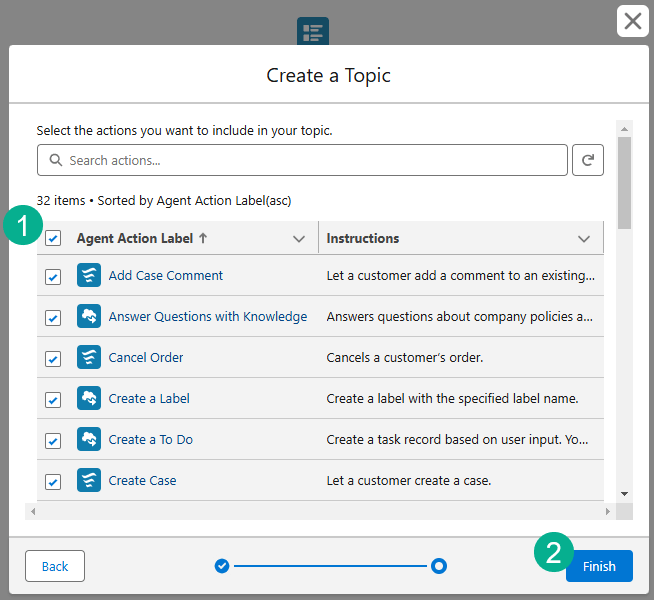
(1) Click on the box next to Agent Action Label which will select all Agent Actions.
(2) Click Finish.
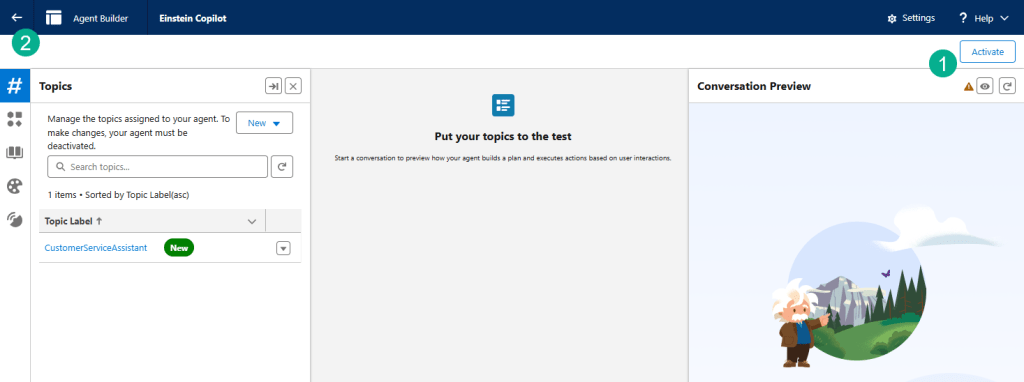
(1) Click activate.
(2) Click the back arrow to go back to basic setup.
Step IV: Explore standard agent actions
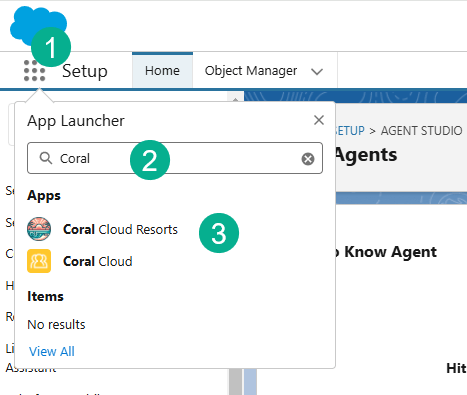
(1) Click on the nine dot app launcher.
(2) Start typing in Coral Cloud Resorts.
(3) Click on the Coral Cloud Resorts app.
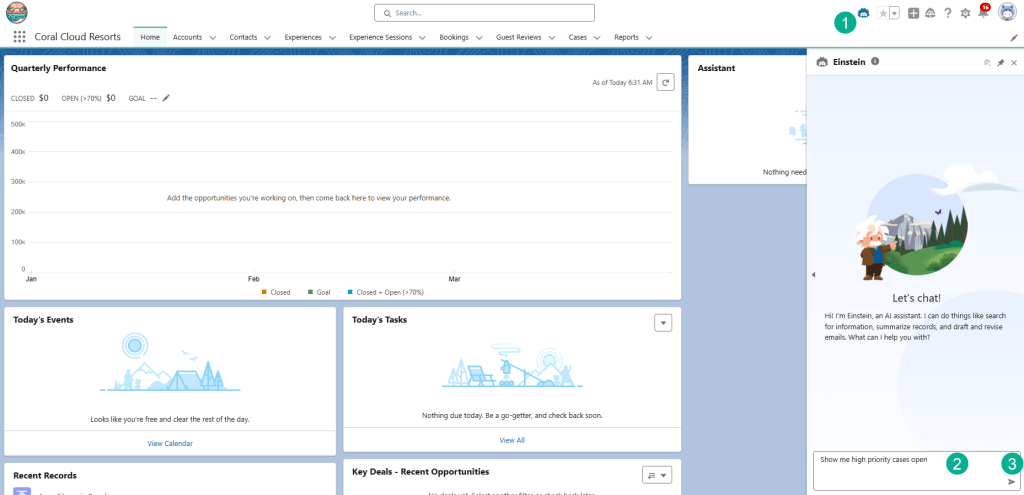
(1) Click on the Einstein icon in the upper right corner.
(2) Enter the following text in the Einstein popup window: Show me high priority cases open
(3) Click on the Arrow icon on the right or click Enter.

(1) Einstein responds pretty quickly.
(2) And after searching the CRM environment returns an important case that a family is cancelling their White Water rafting experience. This requires an urgent follow up to reschedule these folks on another experience to keep their satisfaction high.
(3) Here’s another example of a high priority case that Einstein provides.
Next ask Einstein to: Can you summarize the first case for me?

Einstein provides a ton of helpful information.
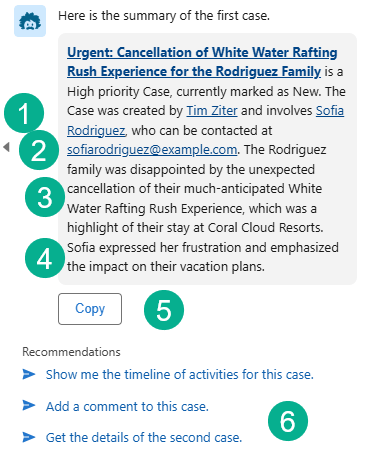
(1) The owner of the case can be helpful for followup.
(2) The contact and their email address for the family.
(3) A helpful explanation on why the case was created.
(4) Detailed information on how the contact is feeling.
(5) Plus you can copy the info if you need to send it to someone.
(6) And Einstein gives you other suggested questions.

Next ask Einstein: Can you give me an overview of the contact?
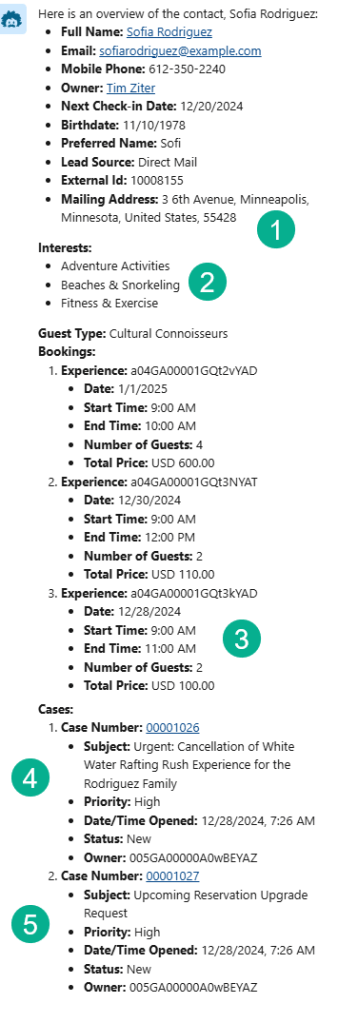
(1) Einstein provides helpful information about the contact that can be helpful when reaching out to the contact.
(2) Knowing their interests can be helpful to find a new experience if another rafting experience isn’t available.
(3) It looks like this is the rafting experience (It might be helpful if the data provided a name and status. Also good to know that the contact has several experiences after the rafting experience.
(4) And having details about the case as well is convenient.
(5) As well as seeing other cases related to this contact which might give an idea of their level of satisfaction.
Going a little off script of the training, try entering: For Sofia is there another rafting experience available to reschedule

(1) Einstein recommends an alternative to the Rafting experience.
(2) It looks like there is plenty of availability at 50 open spots.
(3) And Einstein offers to reschedule Sofia and the family for that adventure.
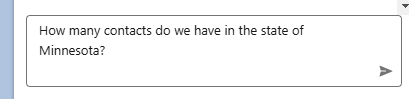
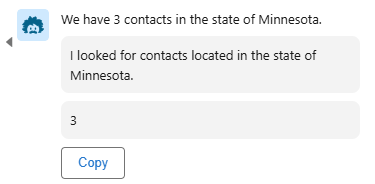
Agents can also aggregate data across a wide variety of contacts/data points. Try entering: How many contacts do we have in the state of Minnesota?
Step V: Work with actions in Agent Builder
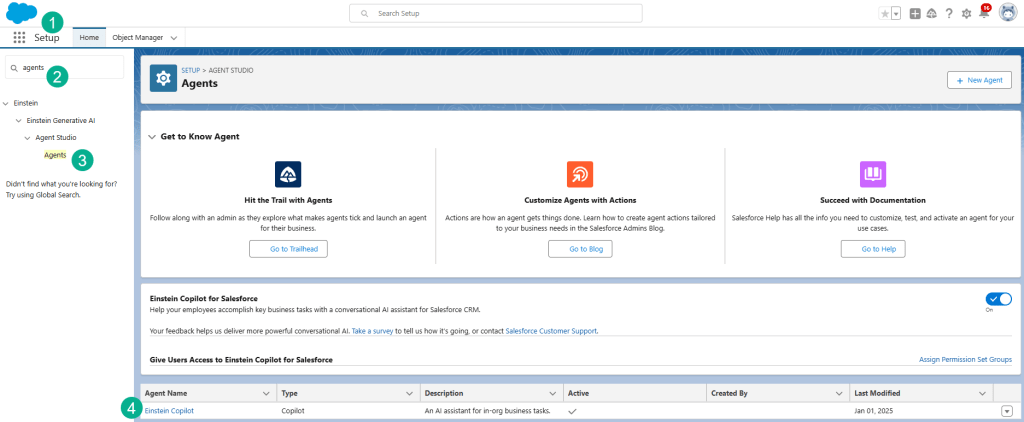
(1) Back in Setup.
(2) Search for Agents.
(3) Click on Agents.
(4) Click on Einstein Copilot.

Click on Open in Builder. And enter in: “Show me any high priority cases open” in the Copilot window.

(1) Now in the back end (Setup) the user can view the behind the scenes functionality of the Agentforce engine.
(2) Agentforce selects the topic and the appropriate actions.
(3) In the Action screen it summarizes how the agent is working.
(4) Including the query input/output coding.
(5) As well as the response.
Now enter the following prompt: “Can you summarize the first case for me?”

(1) You can see that Agentforce is using the QueryRecords and SummarizeRecord actions.
(2) And you can see the input/output coding featured here.
Now enter the following prompt: “Can you give me an overview of the contact?”

This prompt uses the Get Record Details action.
Congratulations for building your first Agent with Agentforce and seeing a little behind the scenes on the magic of Agentforce!
 Let's learn AgentForce Together!